grovrAll guides
How-to guide · Sports club

Run your club on grovr

Set up your club, run fixtures and nets, collect match fees, score live and stream to YouTube — step by step with real screenshots.

Download the PDF
Module 1

Getting started

Sign up, create your club, invite your players and decide who can do what.
1Download grovr and sign up

  1. Install grovr from the App Store or Google Play.
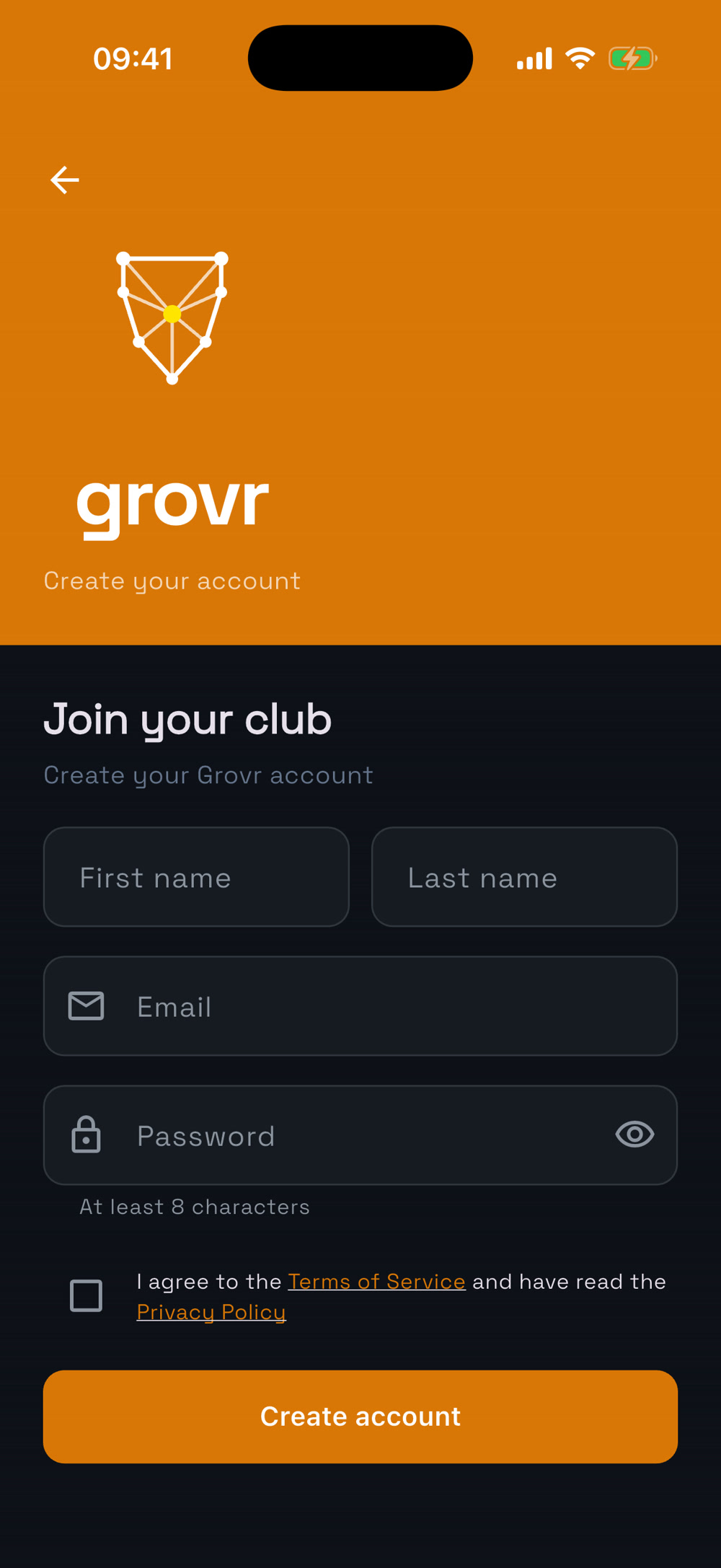
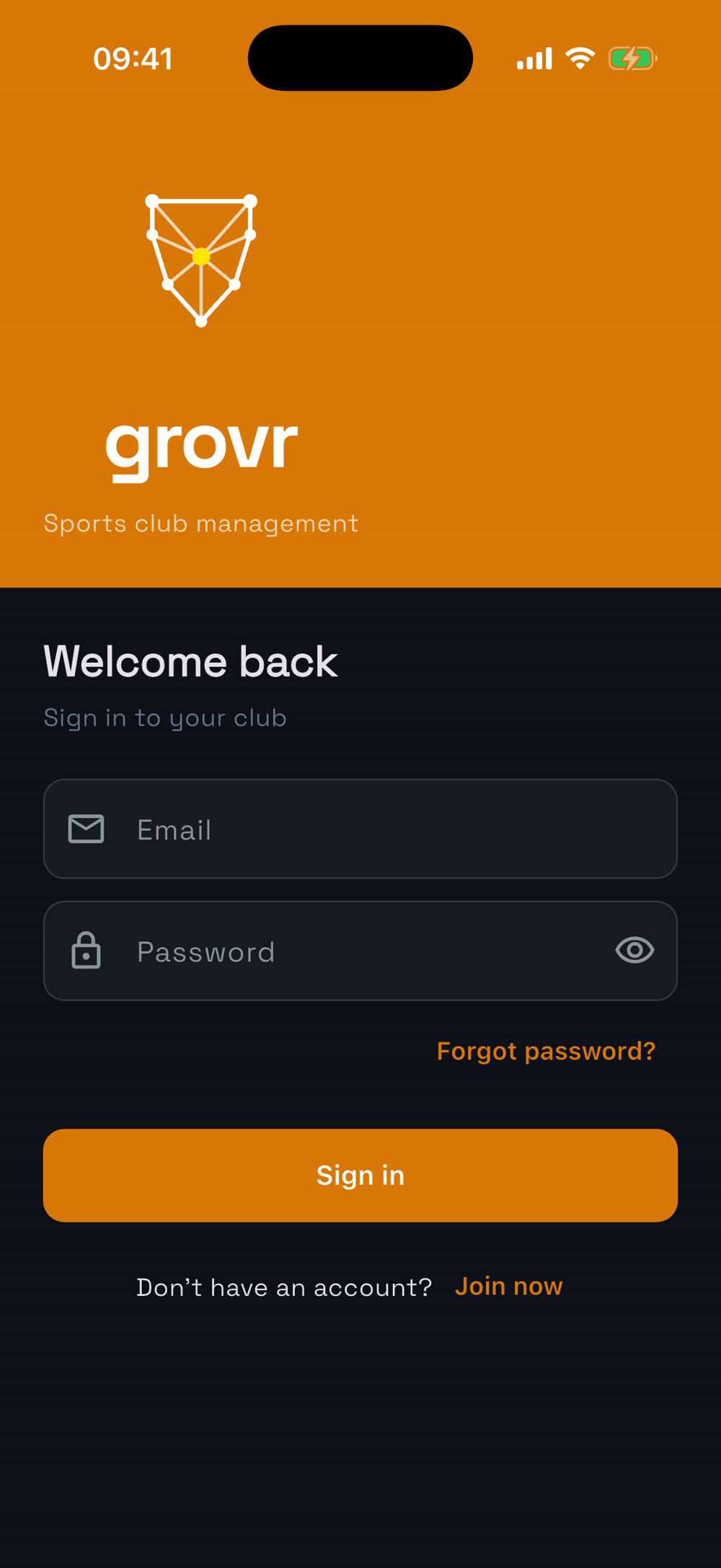
  2. On the Welcome back screen tap Join now.
  3. Enter your name, email and a password, then confirm your email from the link we send you.
Welcome screen
Welcome screen
Join now
Join now

2Create your club

  1. New here? The app asks you to Start something new right after sign-up.
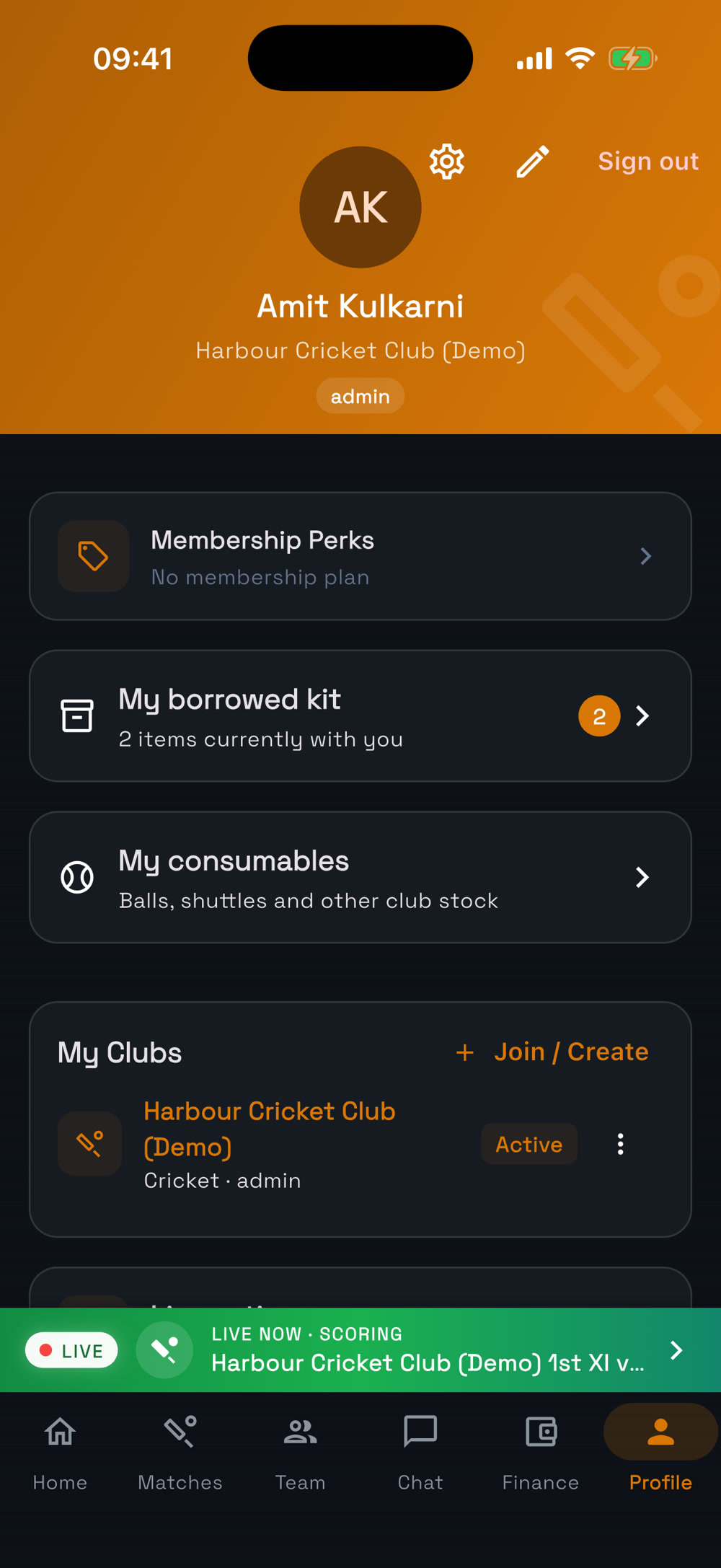
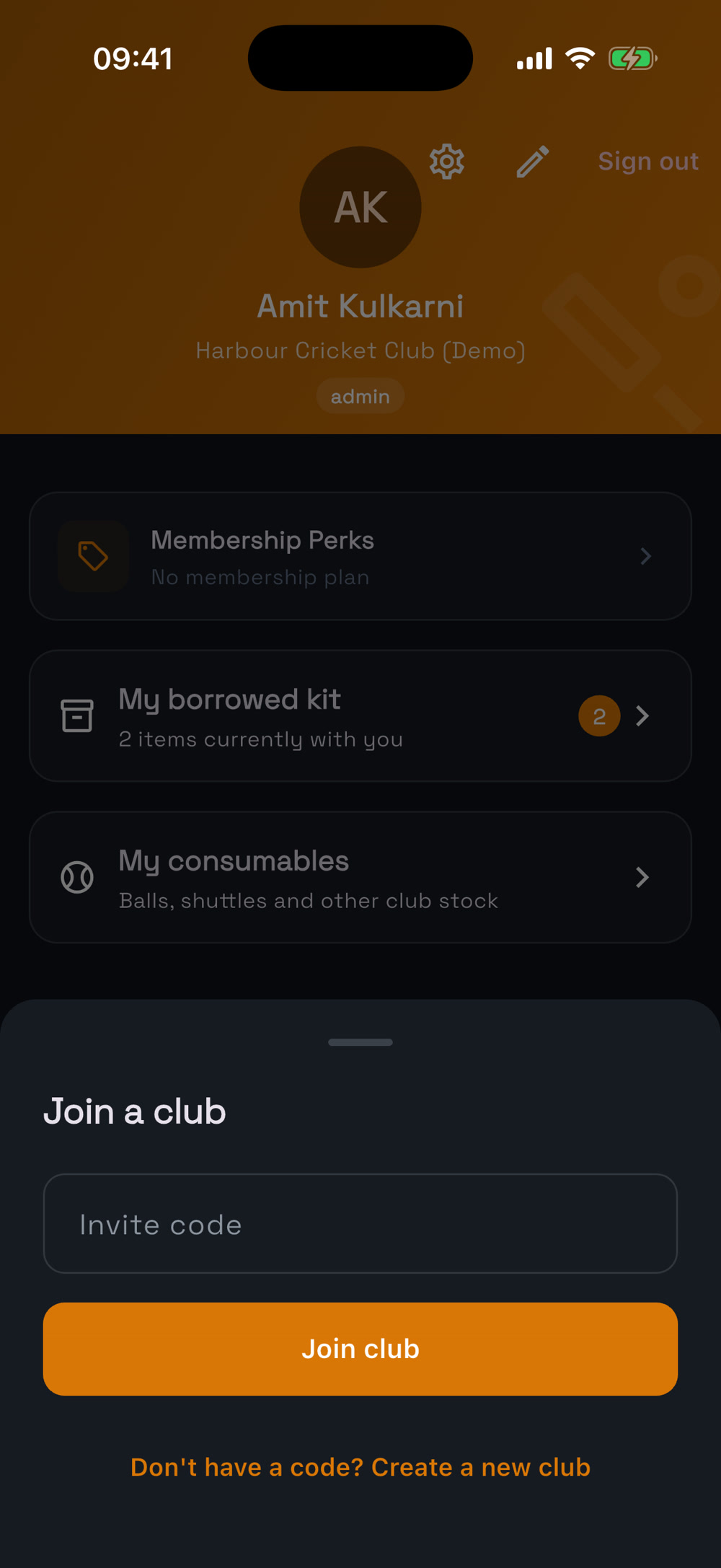
  2. Already in a group? Go to Profile → My Clubs → Join / Create, then tap Create a new club.
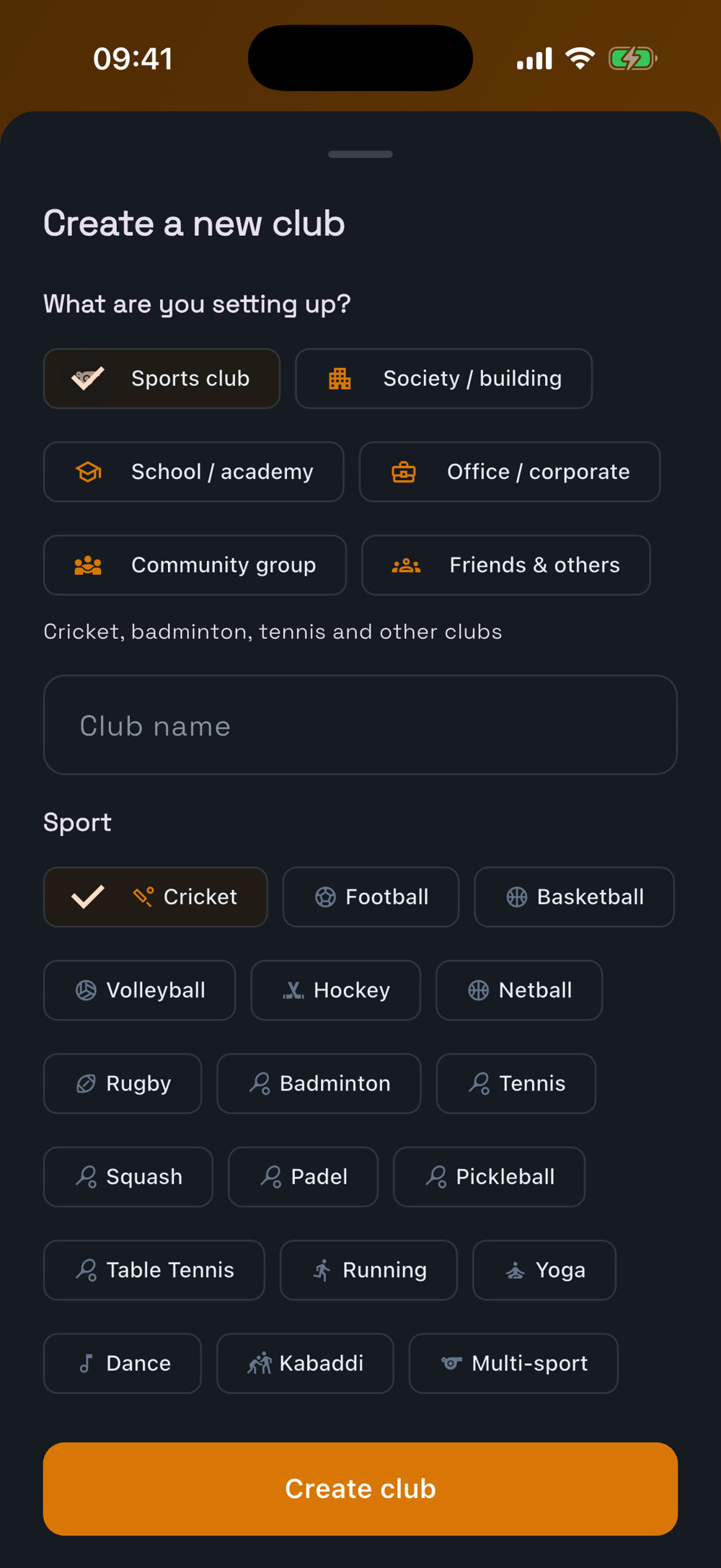
  3. Under What are you setting up? pick Sports club.
  4. Type your club’s name (e.g. Harbour Cricket Club), choose your sport or Multi-sport, and tap Create club. You’re its admin.
Profile → My Clubs
Profile → My Clubs
Tap “Create a new club”
Pick Sports club and name it

3Your home screen

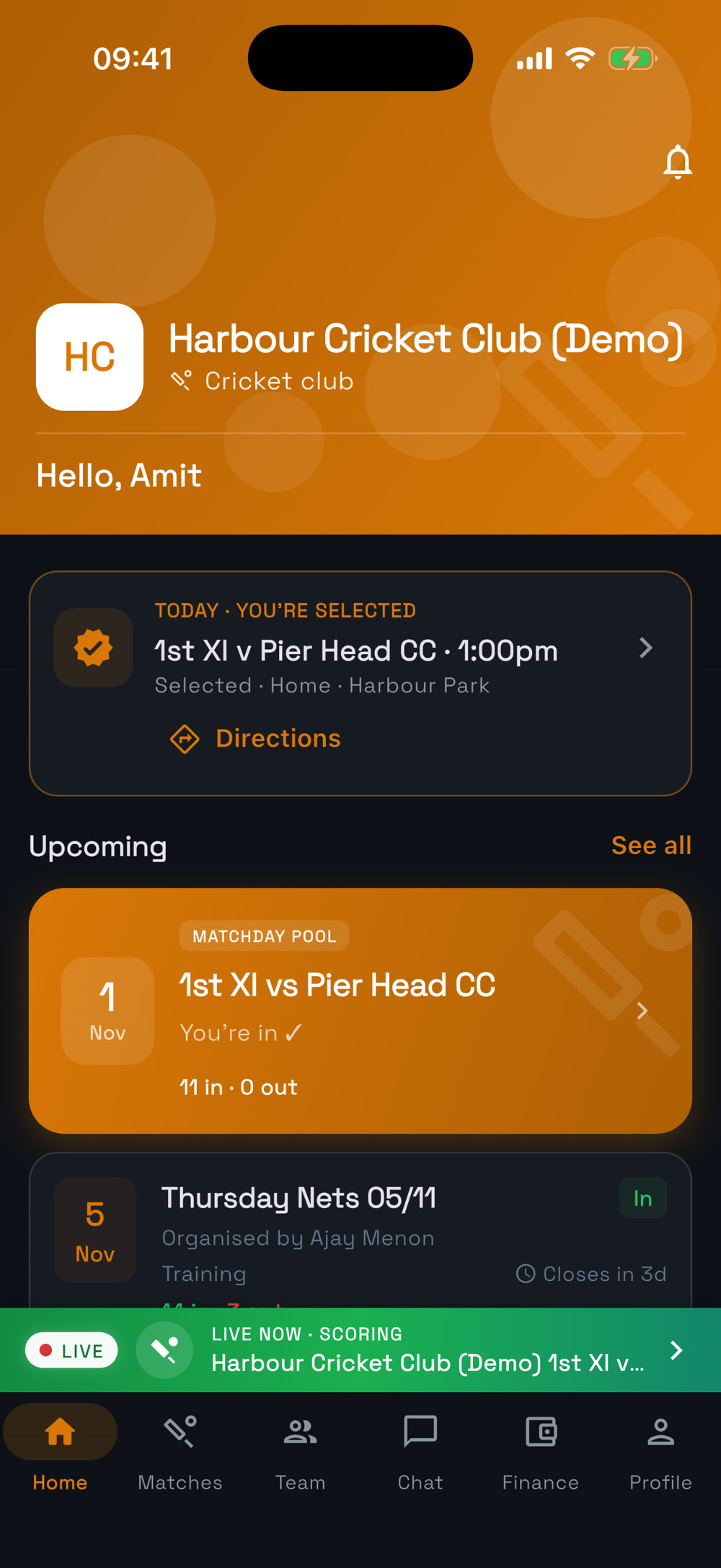
  1. Home shows what’s coming up, games that are live right now and quick actions.
  2. Tap the club name at the top to switch between groups if you’re in more than one.
Home
Home

4Invite your players with a code

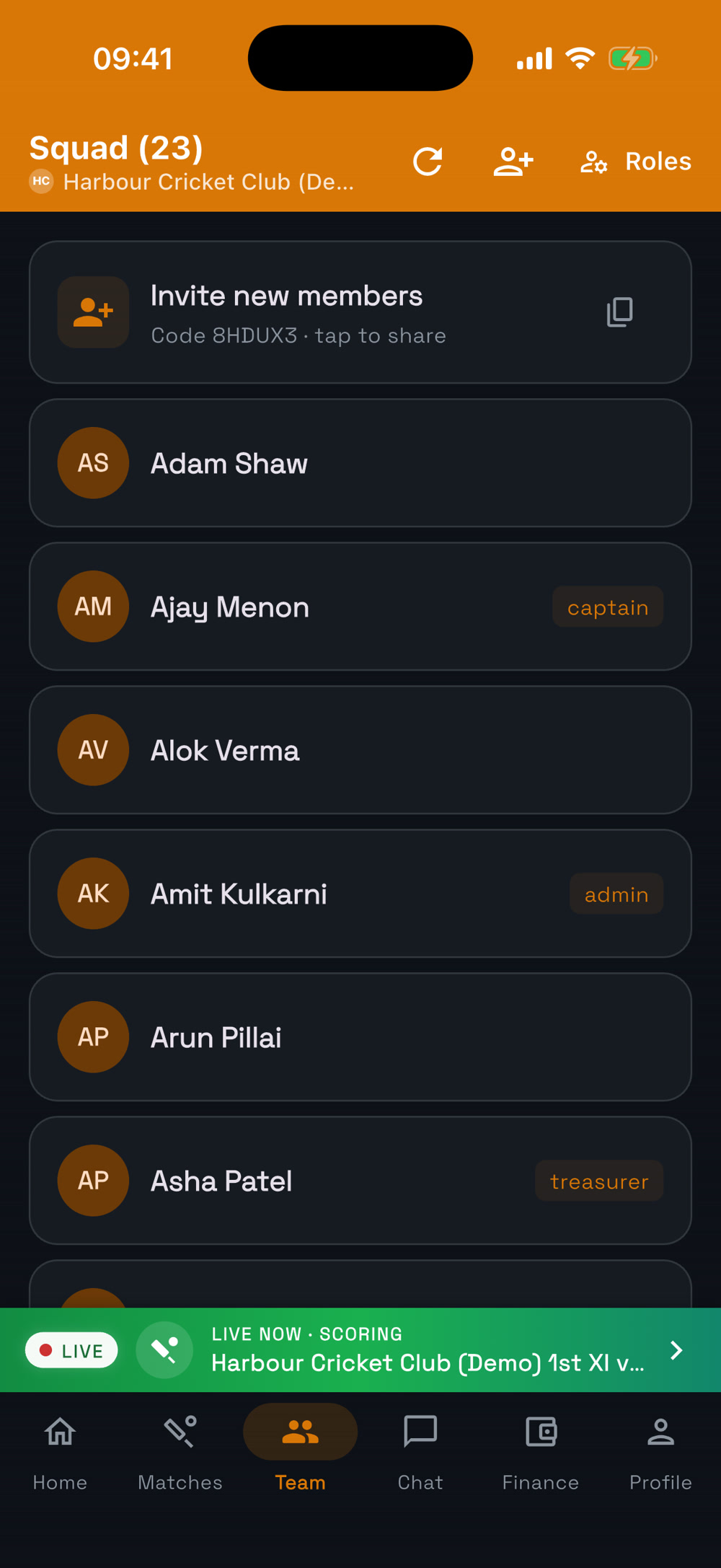
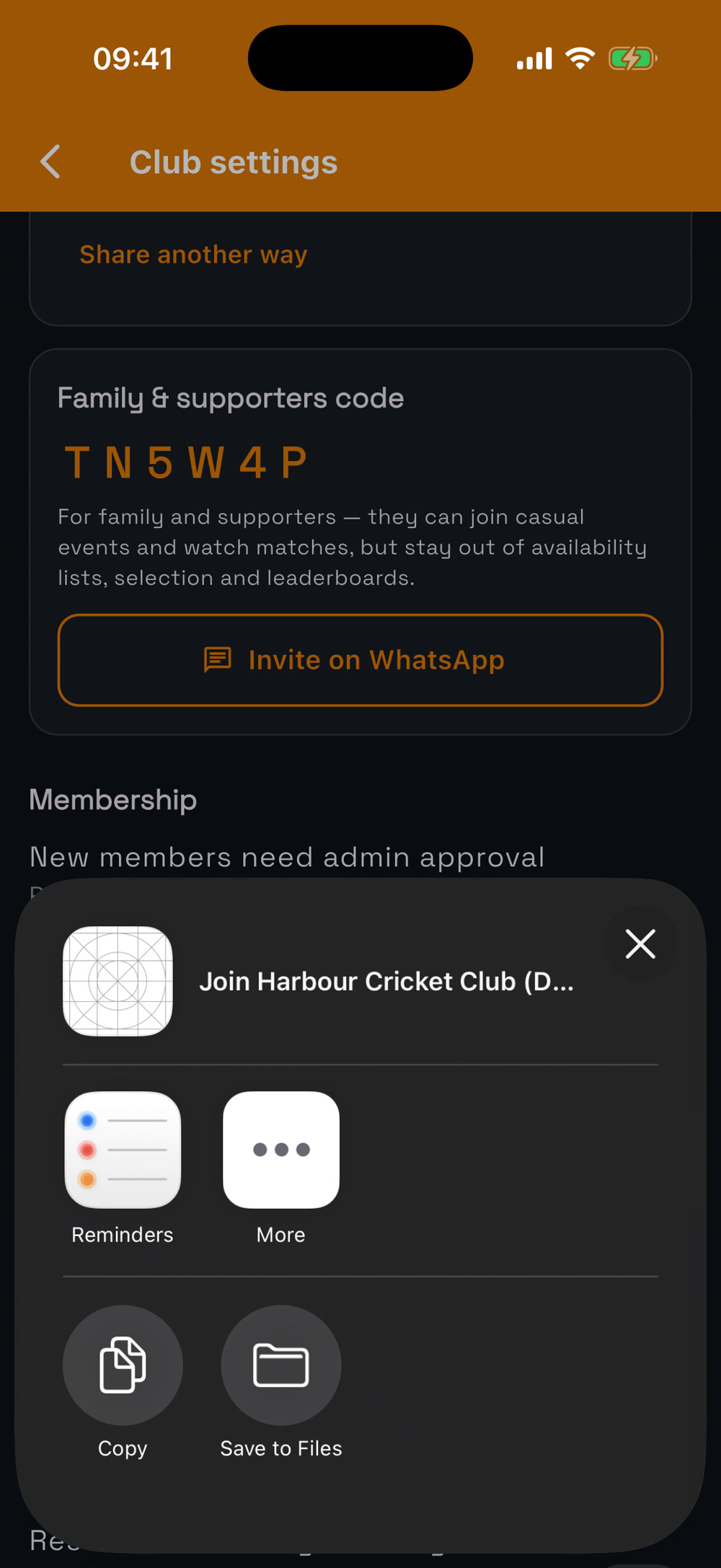
  1. On Home, the Invite your members card shows your club code — tap Share or Copy code.
  2. Or open Team and tap Invite new members at the top of the squad list.
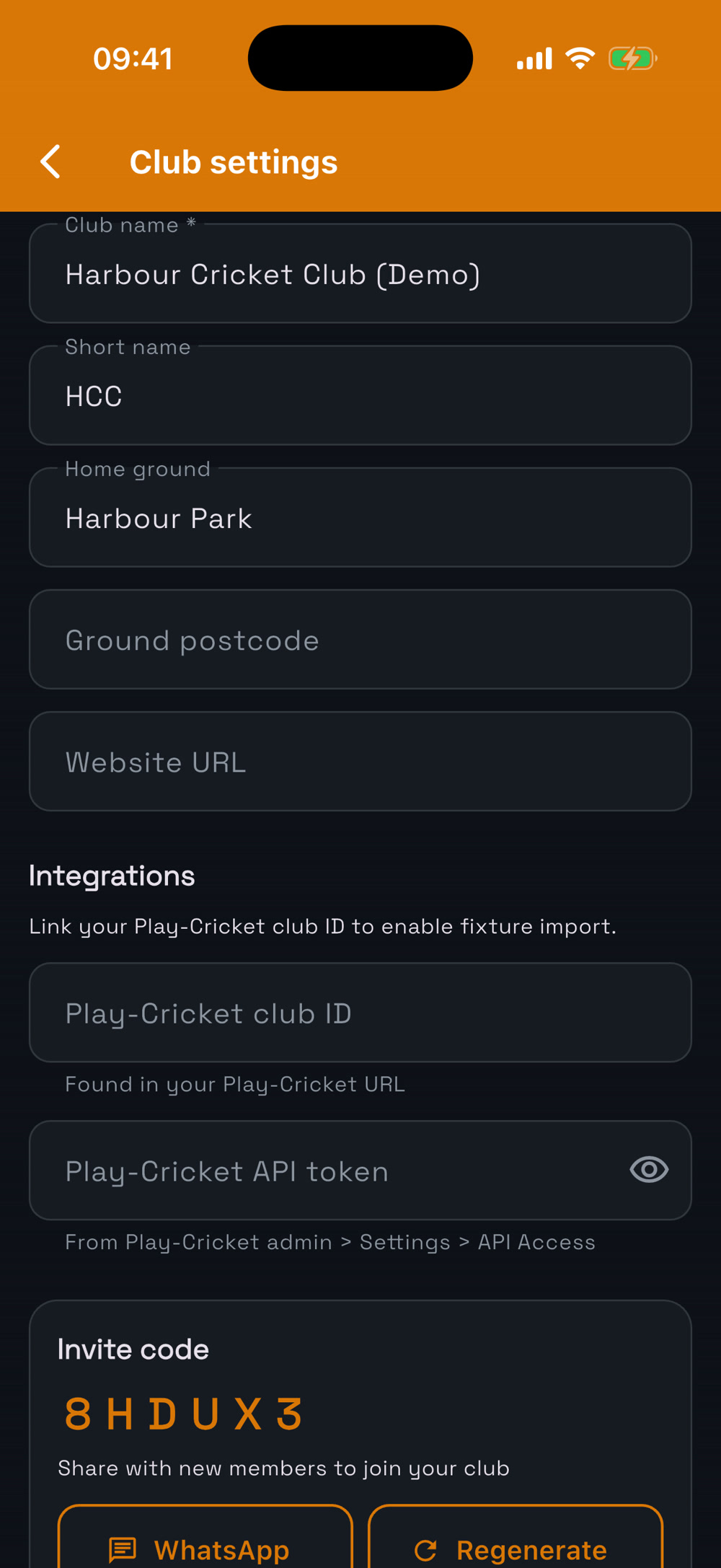
  3. The code is also under Club settings → Invite code, where Regenerate makes a new one if an old one leaks.
  4. Players install grovr, tap Join with a code and they’re in.
You can turn on approval so new joiners wait until an admin accepts them.
Team → Invite new members
Club settings
Club settings
Share it
Share it

5Roles: who can do what

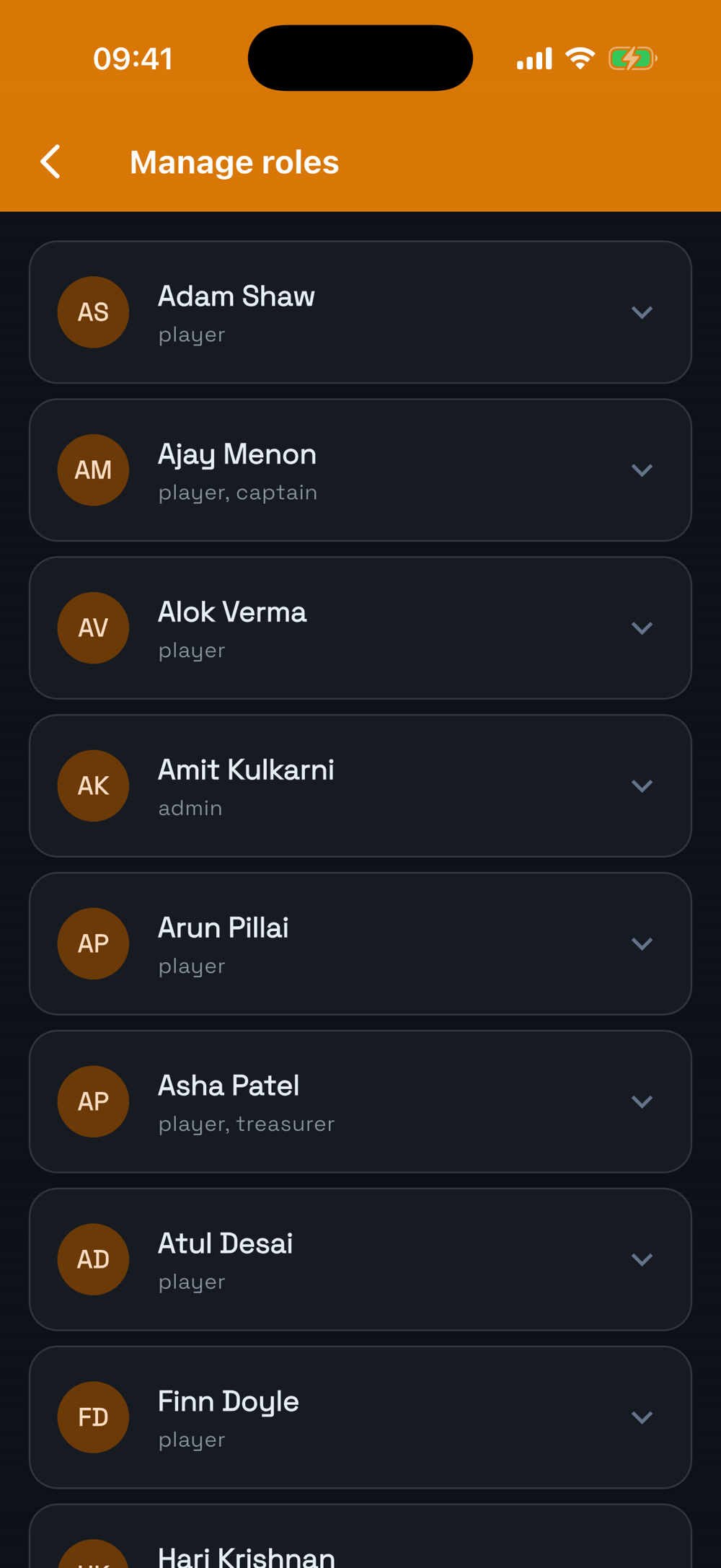
  1. Open the Team tab to see everyone in your club.
  2. Tap Roles (top right), then use the menu next to a name to make them an admin, captain or other role.
  3. Admins manage everything; captains pick teams; scorers can score matches.
Team
Team
Roles
Roles
Module 2

Fixtures & availability

Add one-off fixtures or weekly ones, see who’s in with one tap, pick teams and take attendance.
6The Matches tab

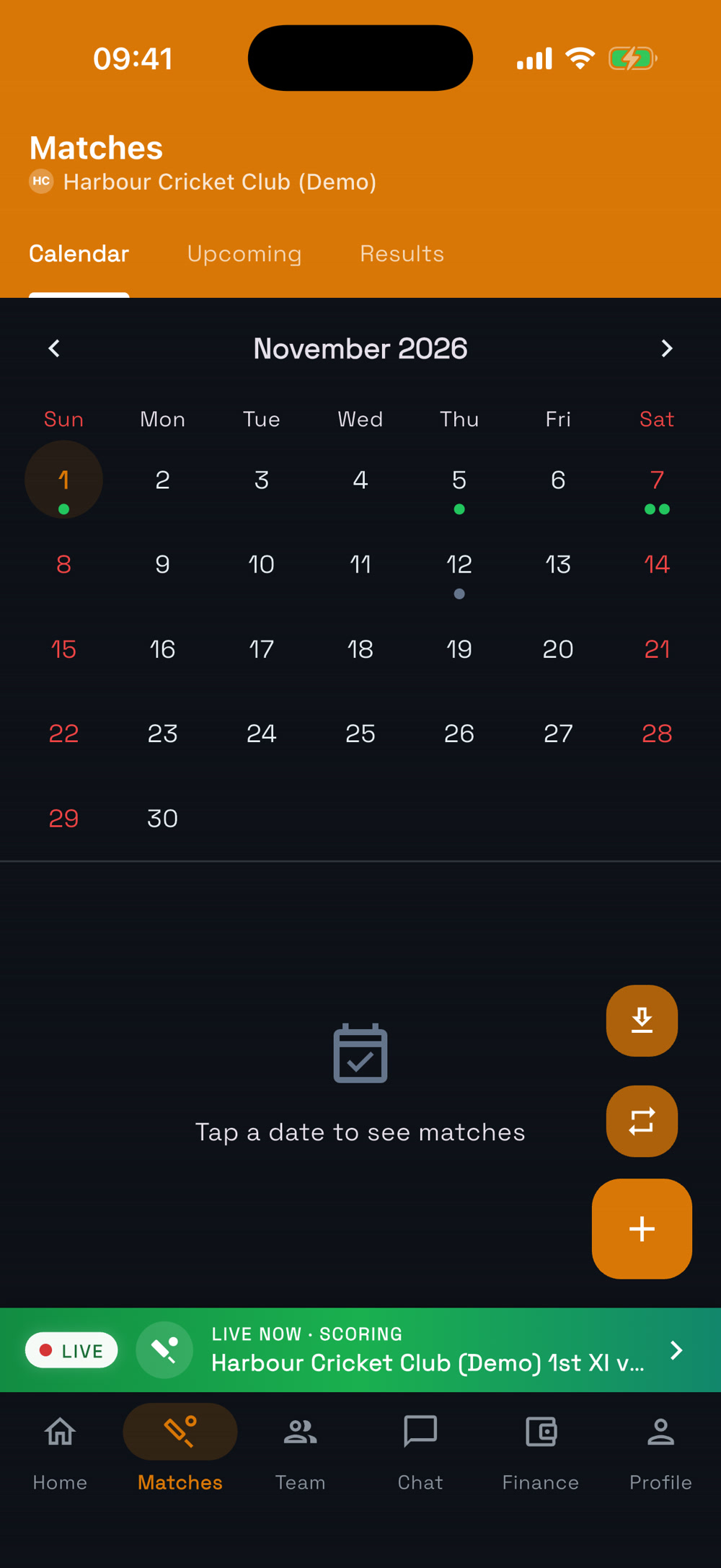
  1. Everything you’ve scheduled lives in Matches: Calendar, Upcoming and Results.
  2. Tap a date to see what’s on; the round + button adds something new.
Matches
Matches

7Add a one-off fixture

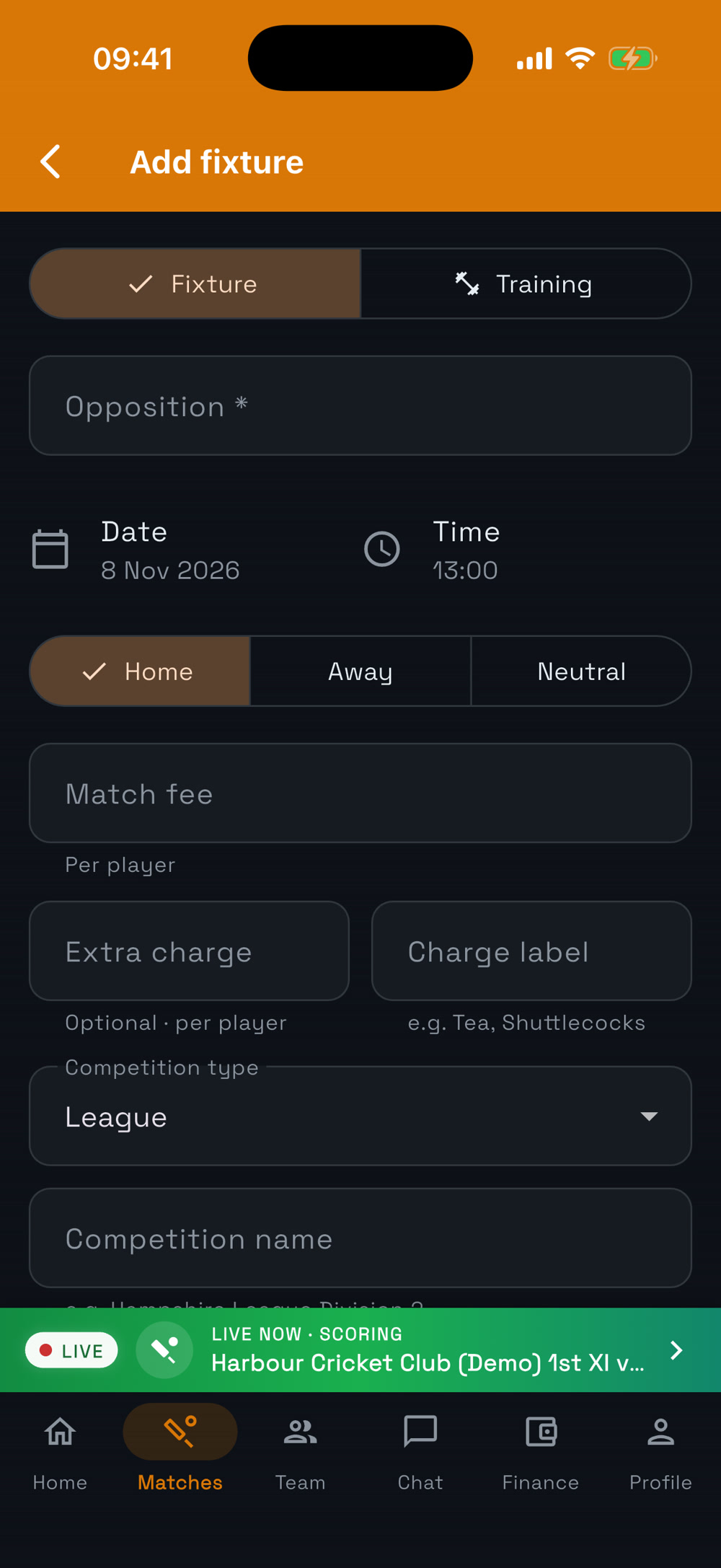
  1. In Matches, tap the round + button.
  2. Choose Fixture or Training, pick the sport, then set opposition, date, time and Home / Away / Neutral.
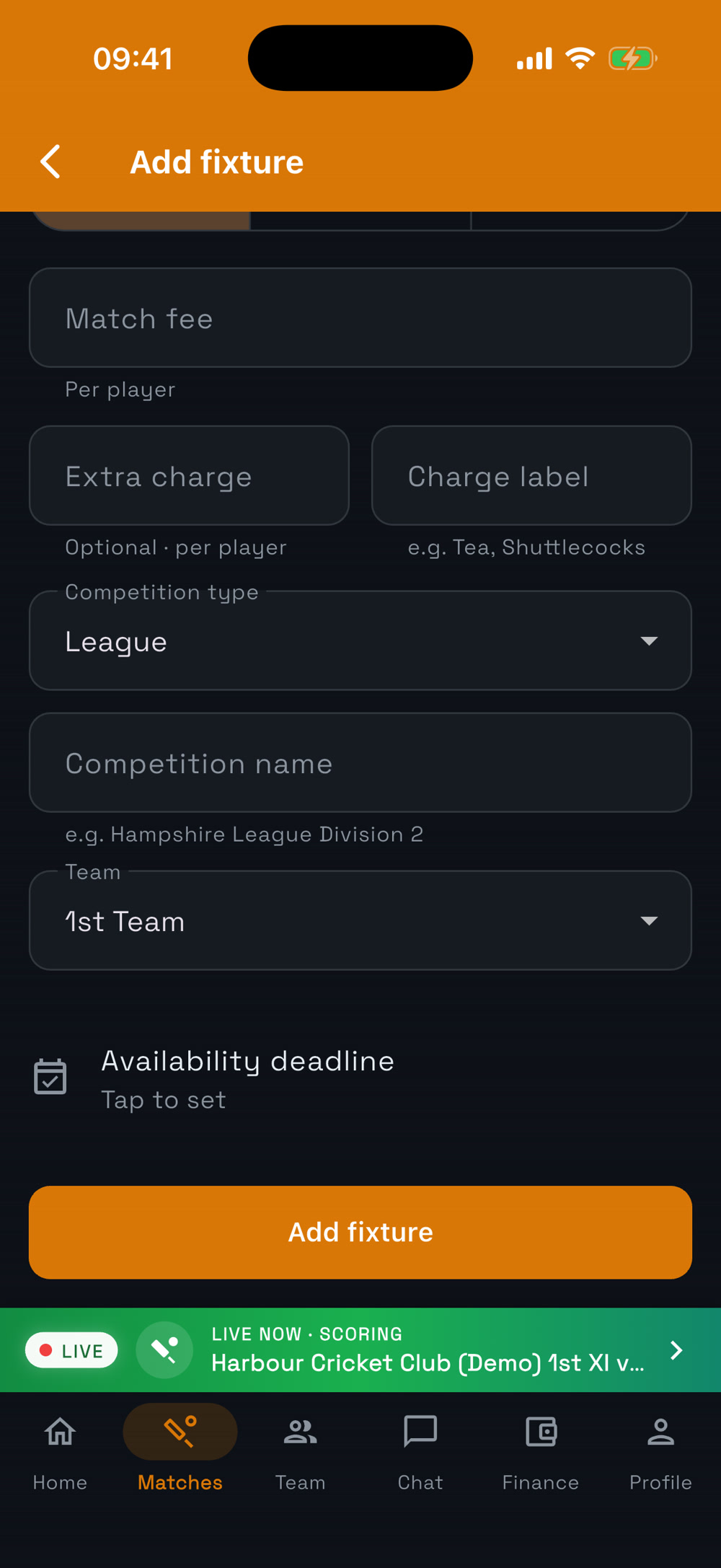
  3. Add a Match fee per player (and an optional extra charge), then tap Add fixture. Your players are asked for availability straight away.
New fixture
New fixture
Fees and format
Fees and format

8Add a weekly (recurring) fixture

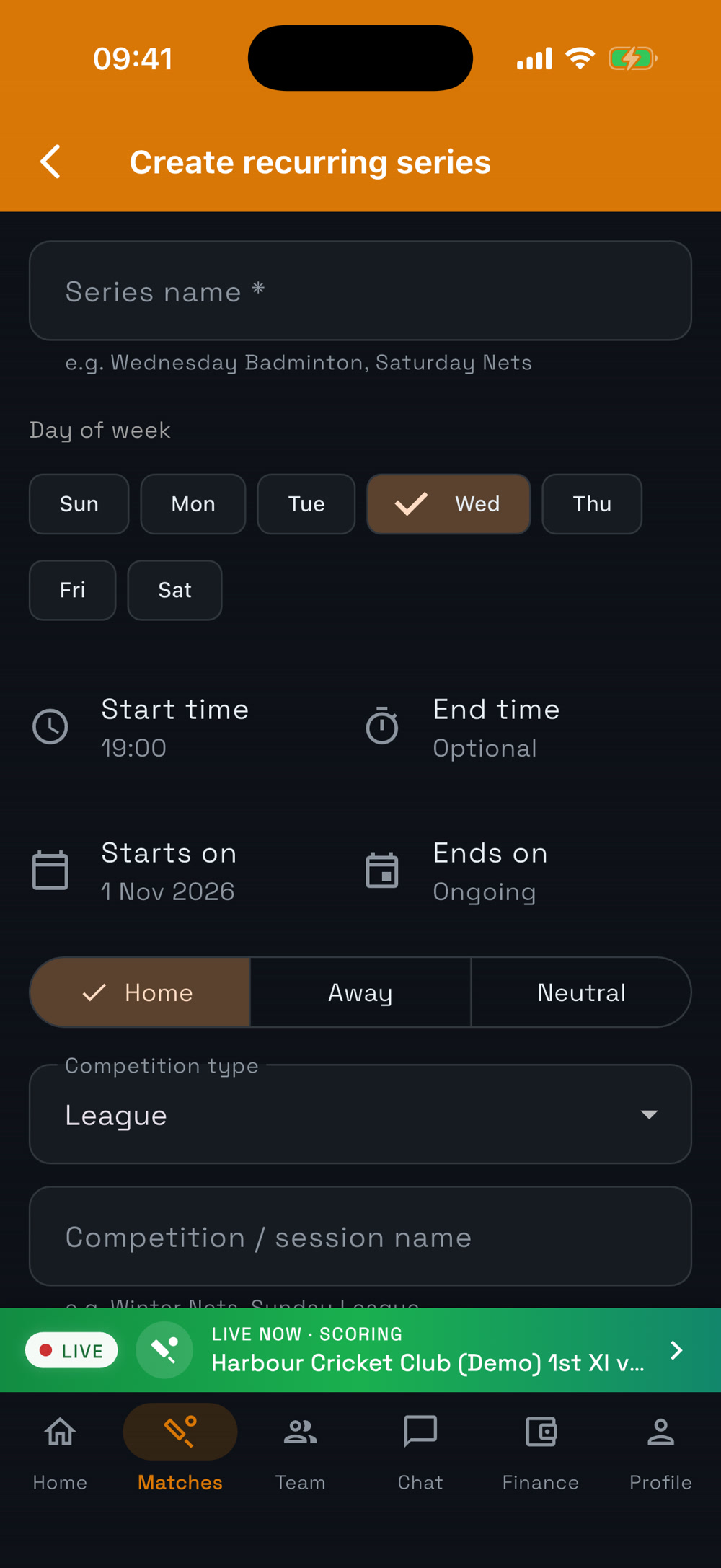
  1. In Matches, tap the repeat button above + to Create recurring series.
  2. Pick the sport, name it (e.g. Thursday Nets), choose the day of the week, start and end time, and a fee if you charge one.
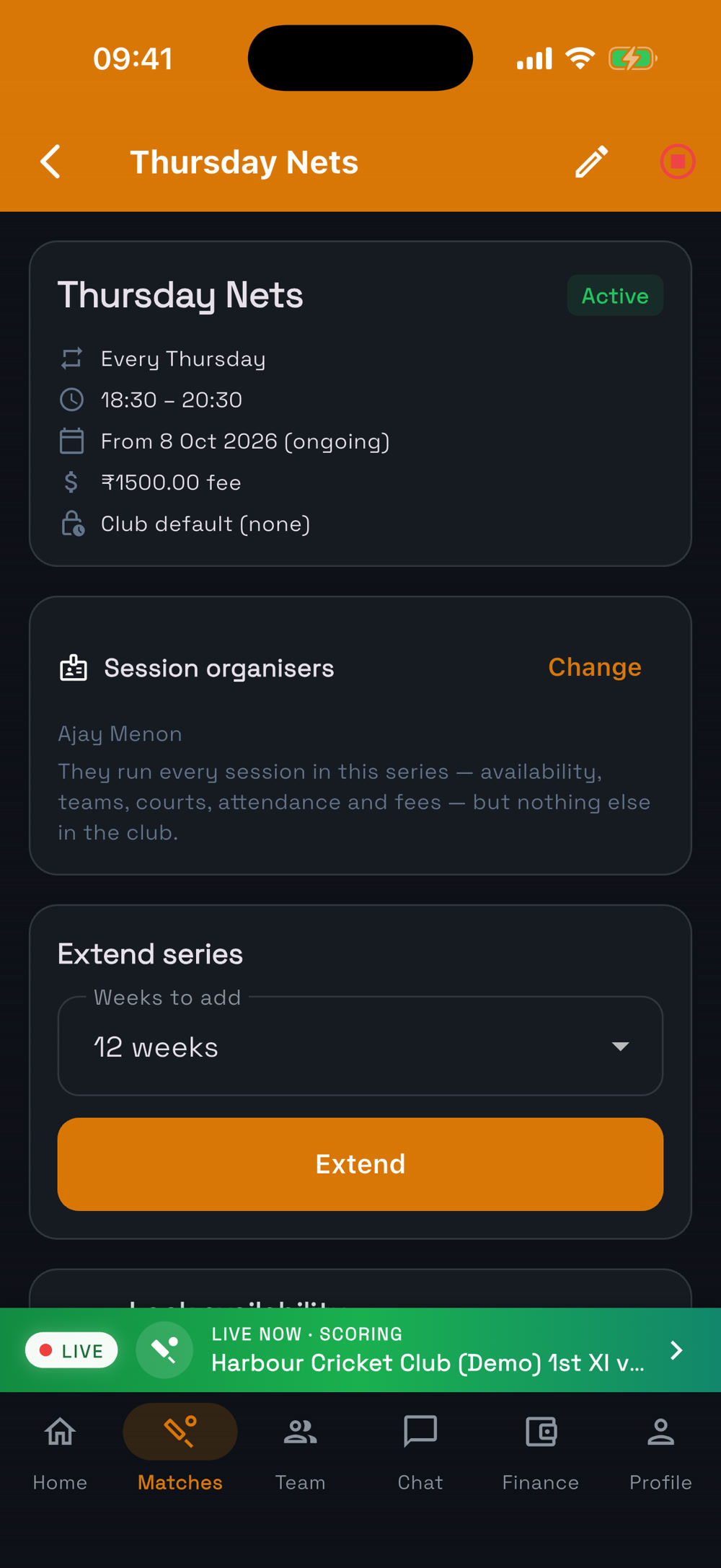
  3. grovr creates every week for you. On the series page you can add Session organisers, Extend series or Lock availability.
Create recurring series
The series
The series

9Mark availability

  1. Open the fixture from Home or Matches.
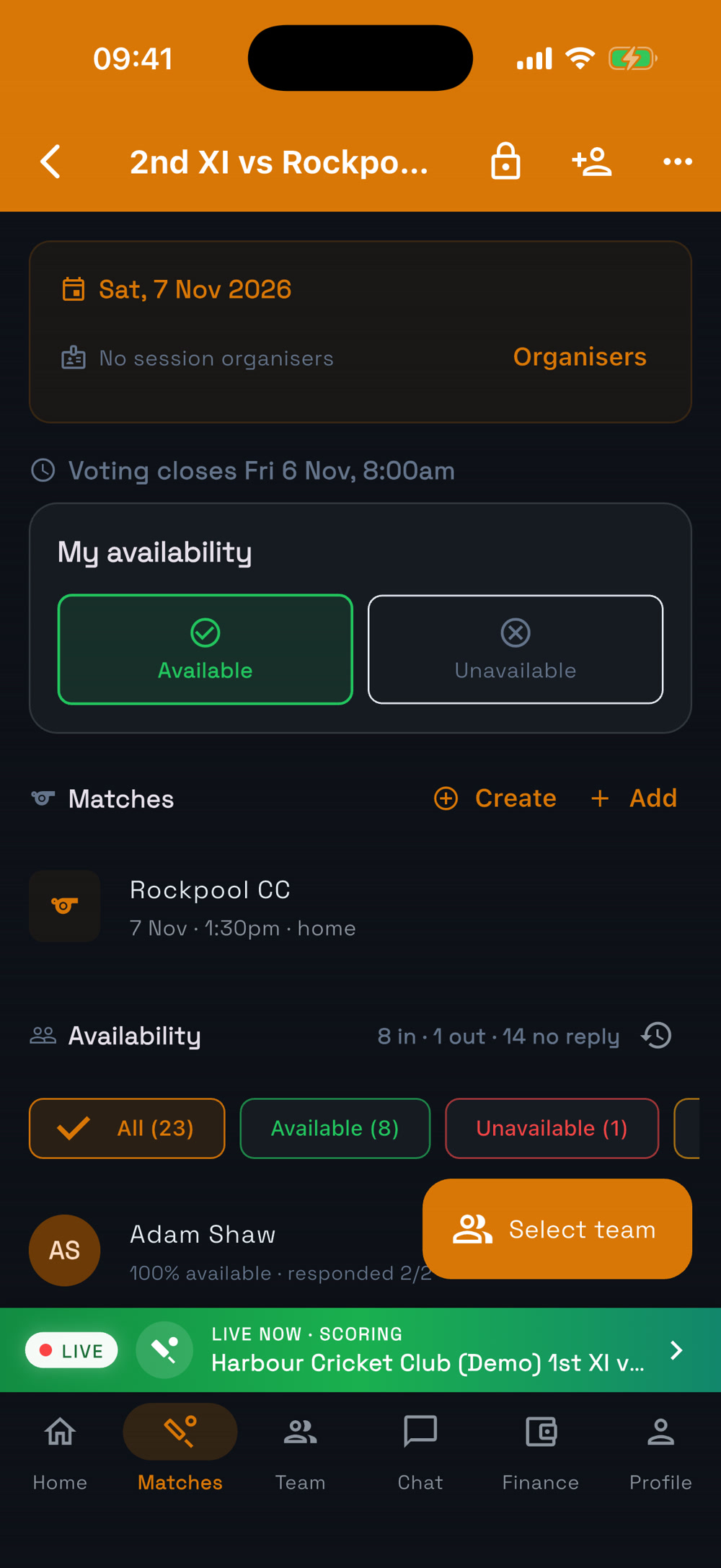
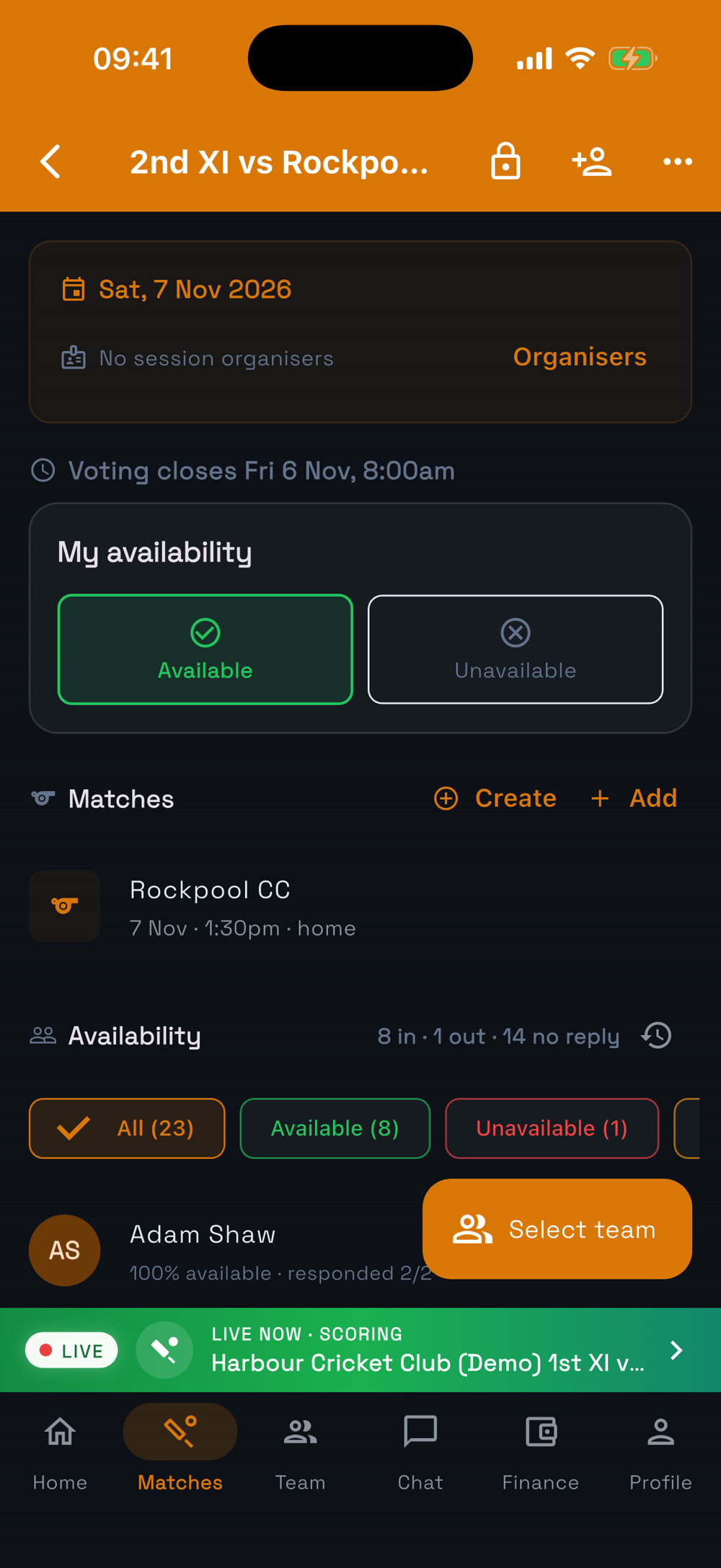
  2. Under My availability tap Available or Unavailable, or answer for the Whole series at once.
  3. Organisers see who’s in, who’s out and who hasn’t replied, and can send a reminder.
Who’s in?
Who’s in?
One tap
One tap

10Pick the team

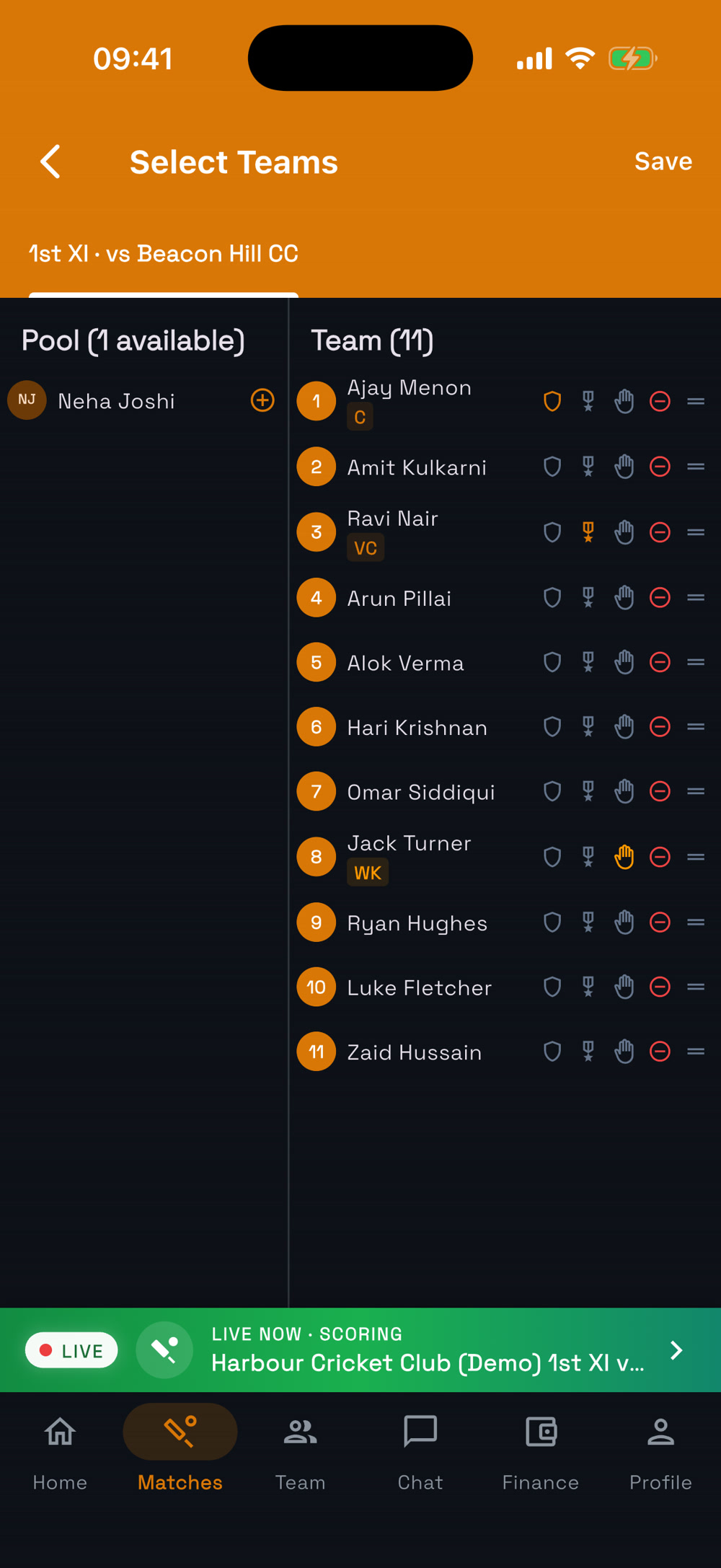
  1. From the availability list tap Select team, choose players and publish — everyone is notified.
Select team
Select team

11Mark attendance

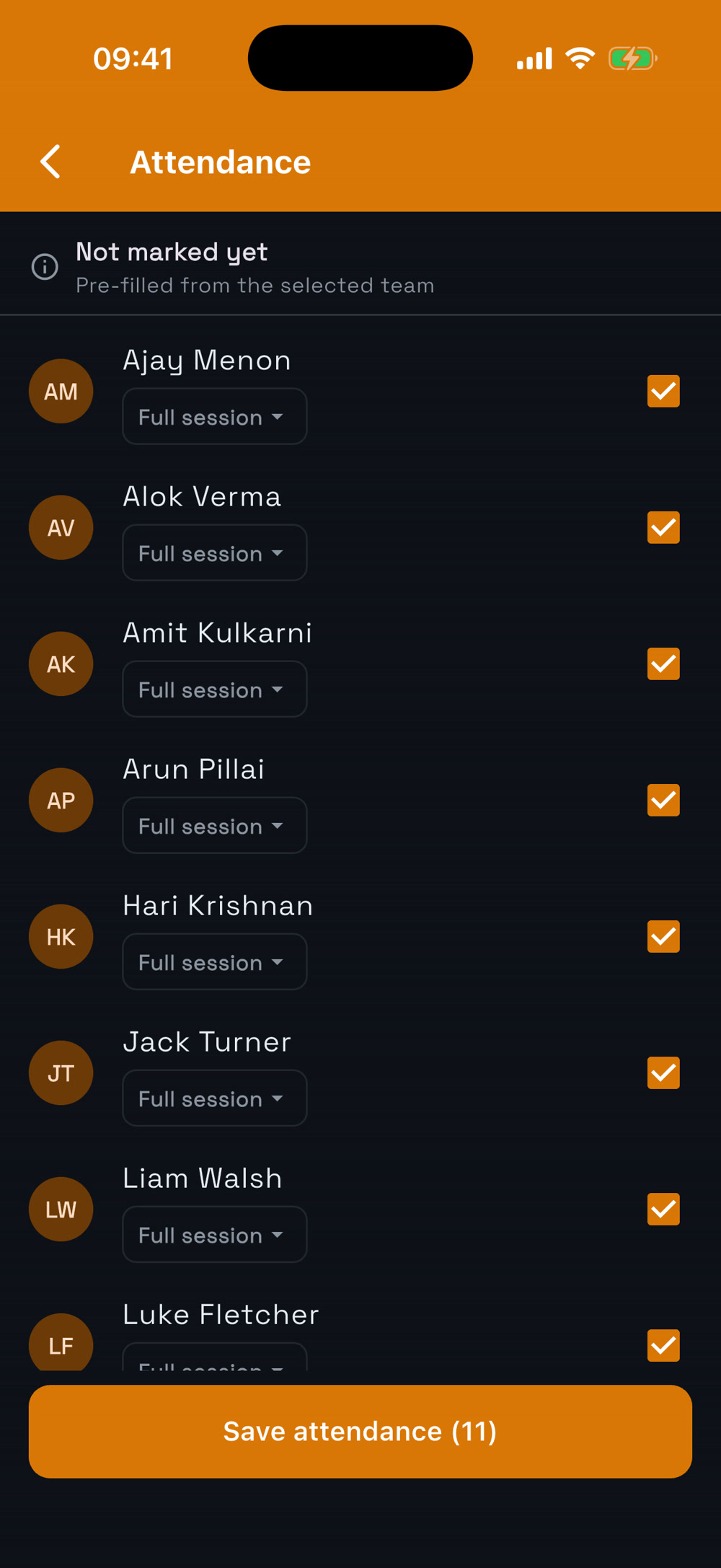
  1. After the fixture, open it and tap Mark attendance.
  2. It’s pre-filled from who said they’d come. Tick or untick, add guests if needed, then Save attendance.
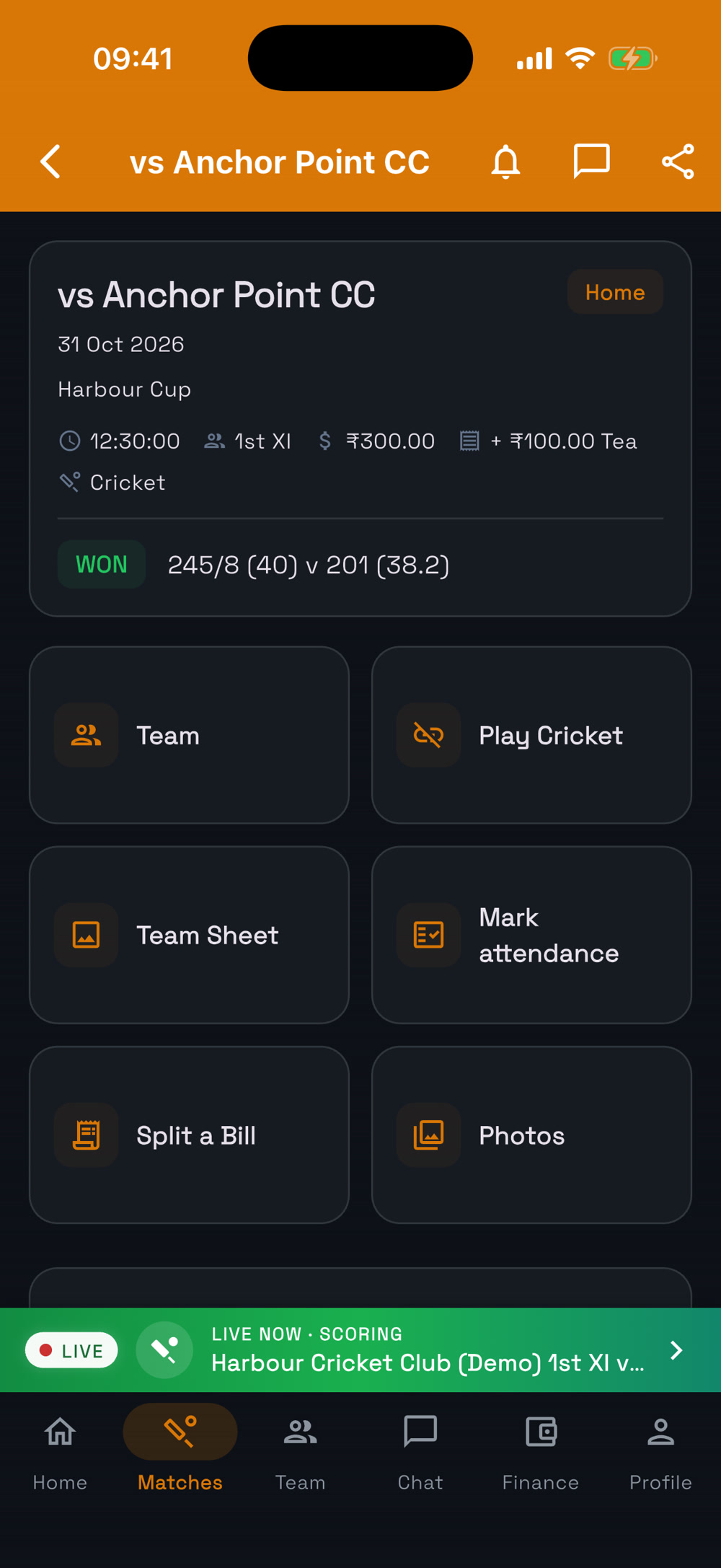
The fixture
The fixture
Attendance
Attendance
Module 3

Fees & payments

Charge for fixtures, split costs fairly and keep track of who has paid.
12Allocate fees for a fixture

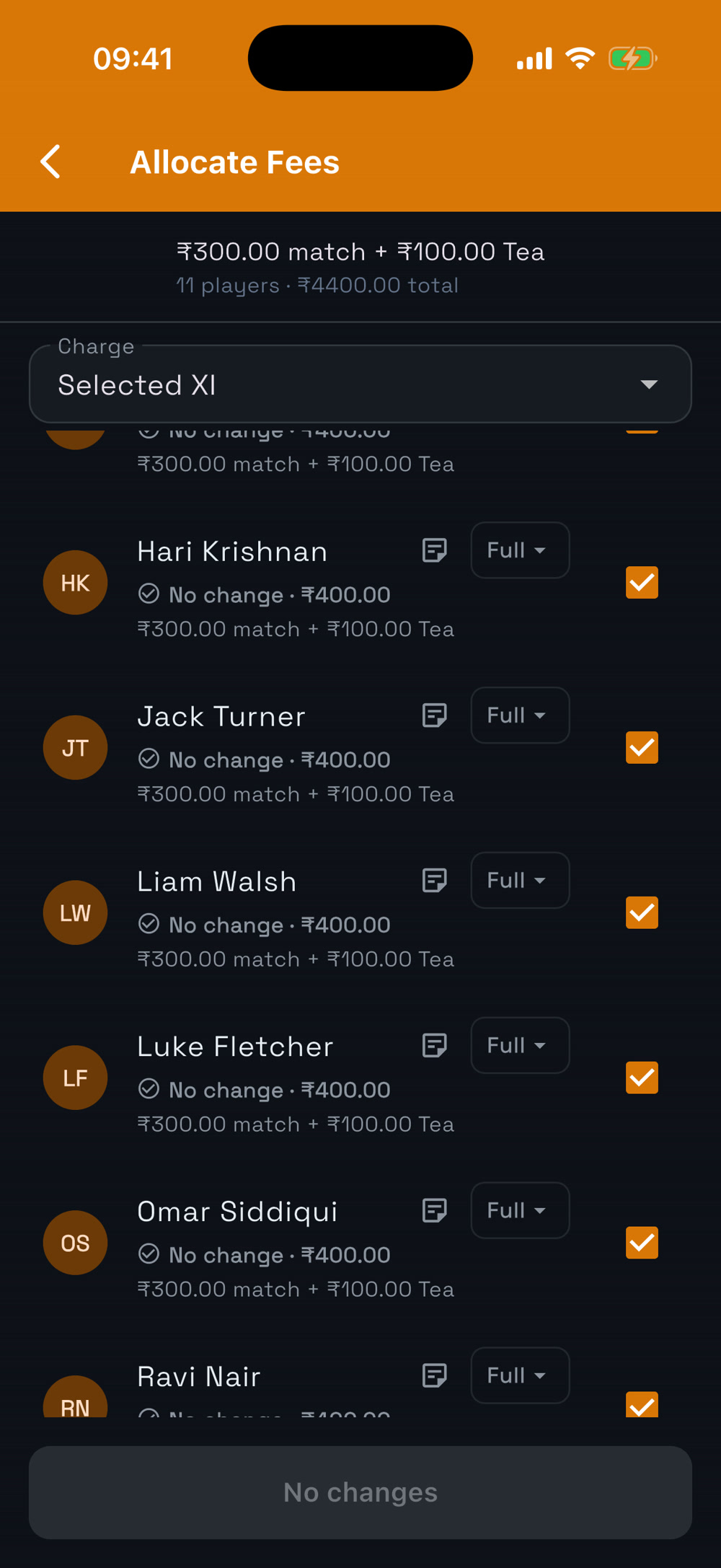
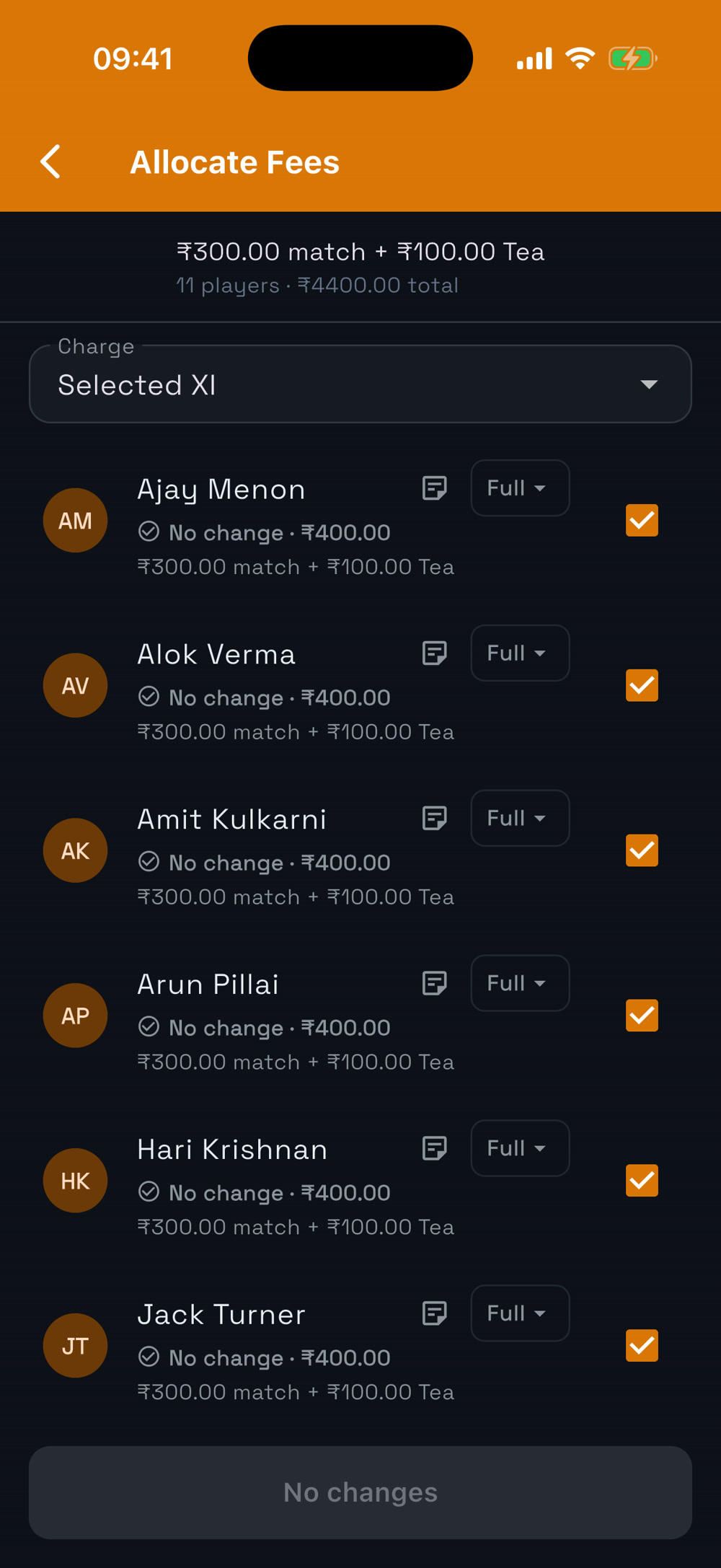
  1. Open the fixture and go to Allocate fees.
  2. Choose who to charge, set each person to Full, part or none, then tap Charge.
  3. Costs like court hire or shuttles can be split per head among who turned up.
Fees
Fees
Who pays what
Who pays what

13See balances and mark fees paid

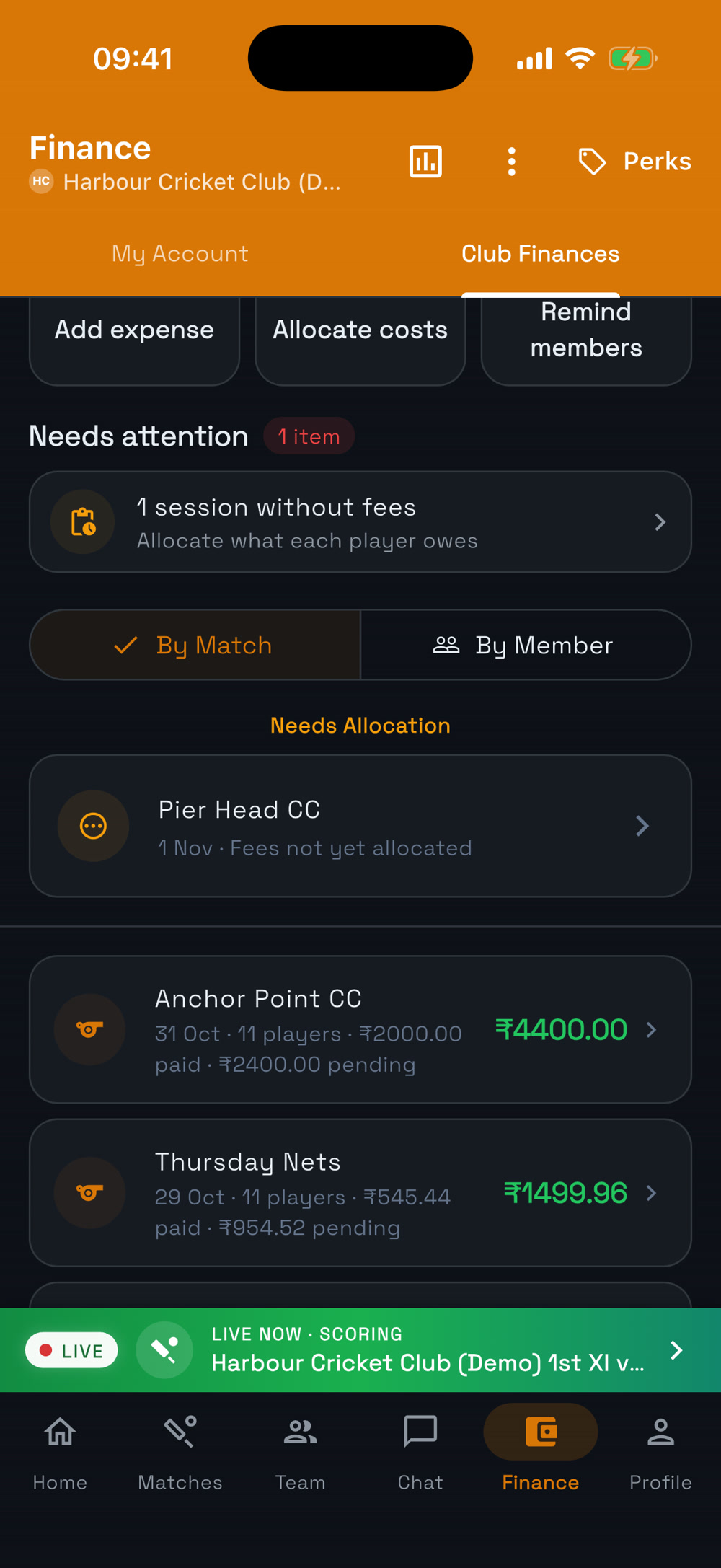
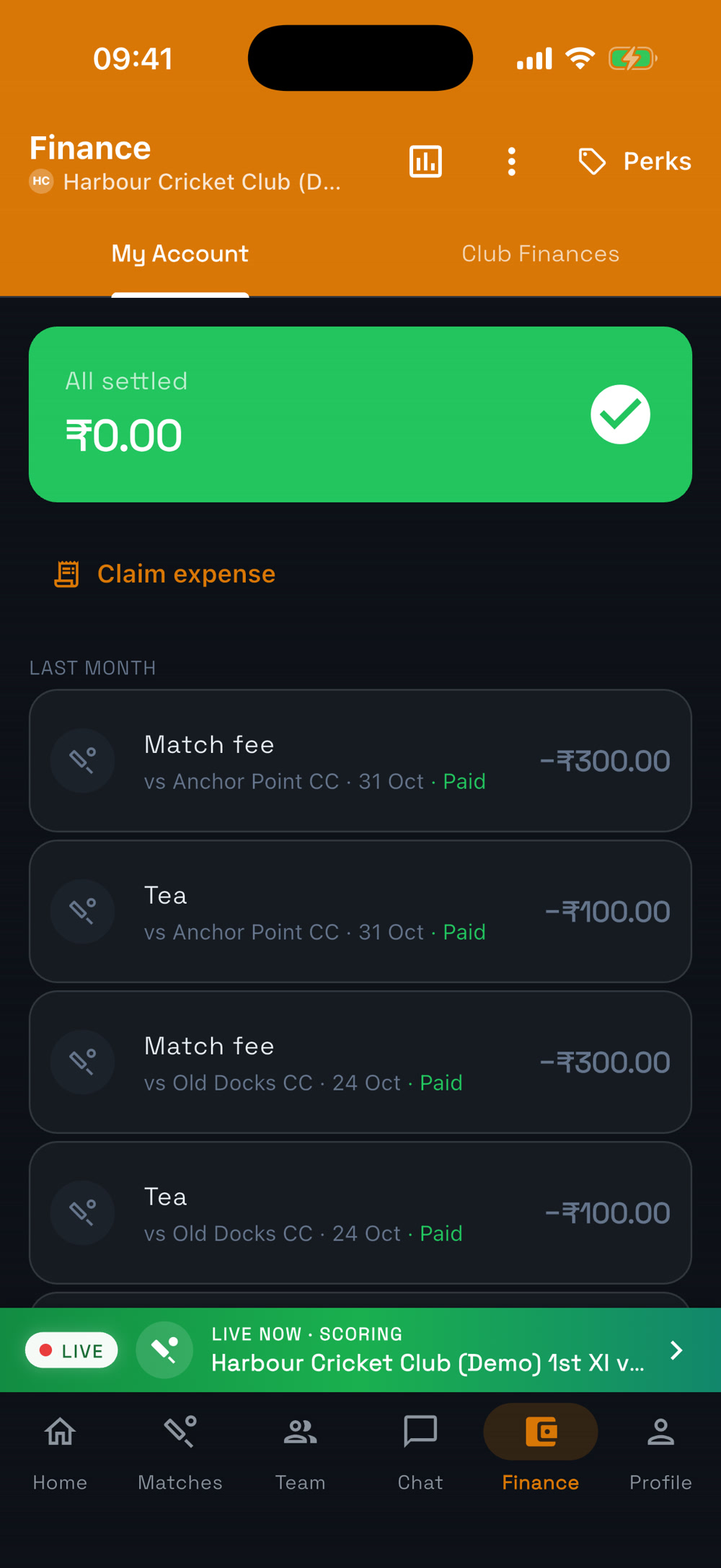
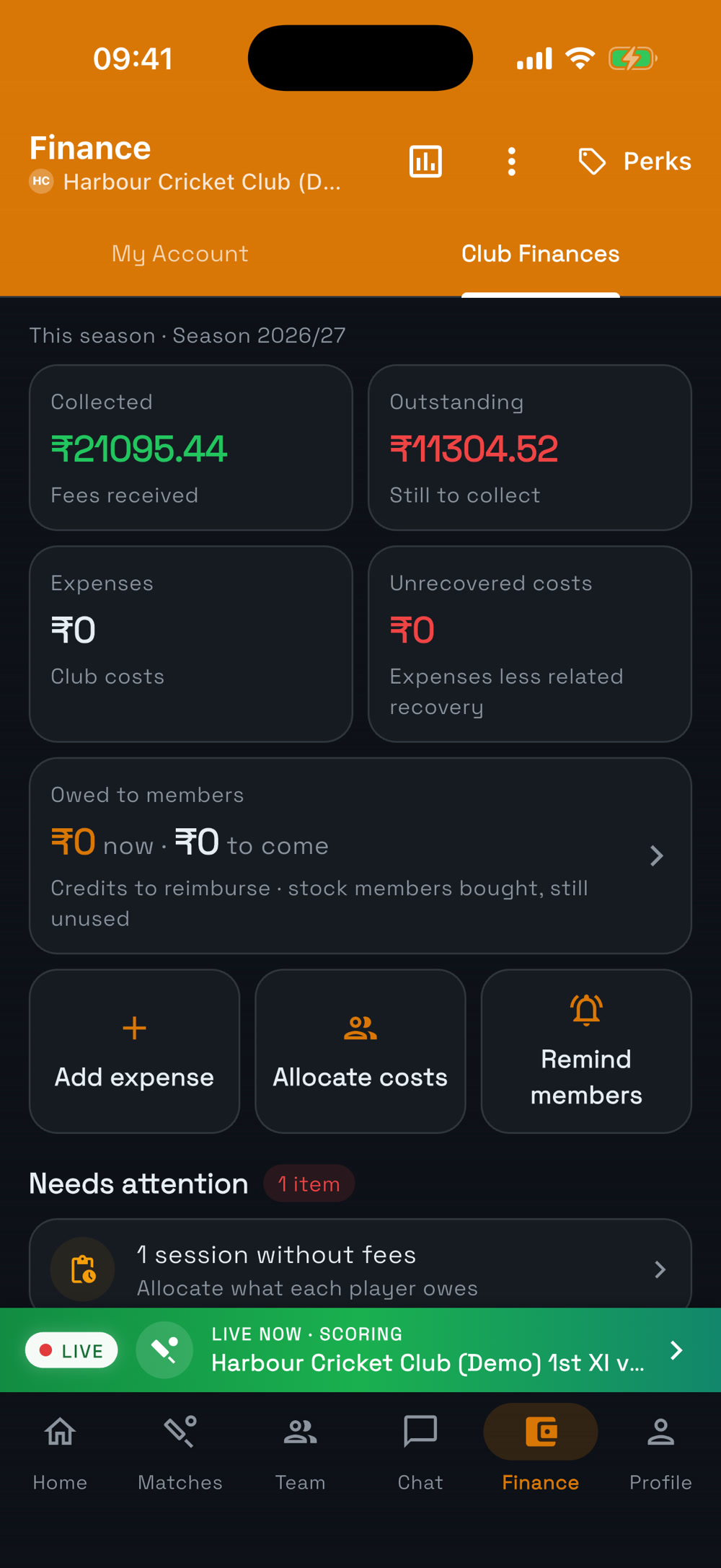
  1. Open the Finance tab. My Account shows what you owe; Club Finances shows everyone’s balances.
  2. Open a person’s charges and tap Mark paid when they pay you.
  3. Players see what they owe in their own Finance tab.
Club Finances
Club Finances
Balances
Balances
My Account
My Account
Module 4

Tournaments & auctions

Create a one-sport tournament or a multi-sport day, draft teams in a live auction and let grovr keep the tables.
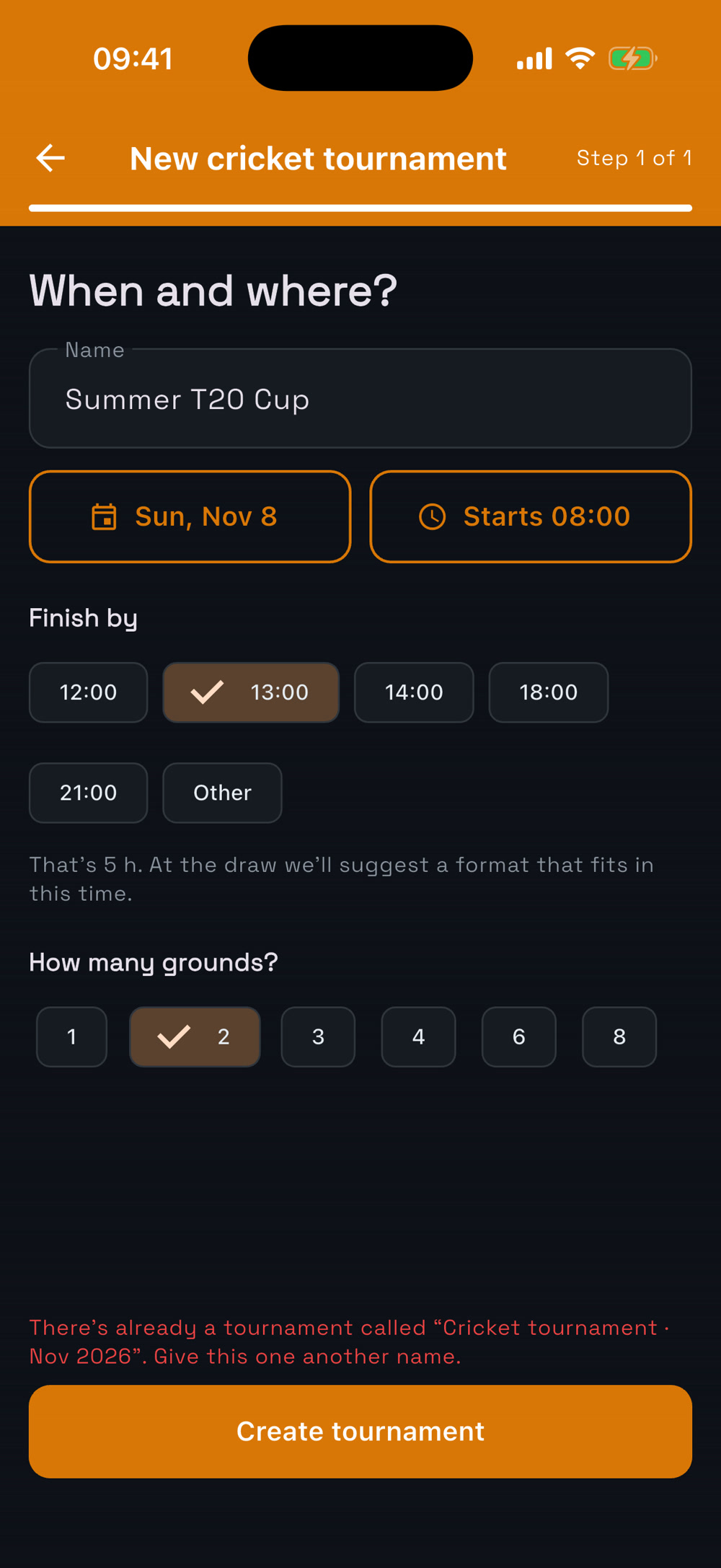
14Create a tournament

  1. Go to Home → Tournaments (or Quick actions) and tap New tournament.
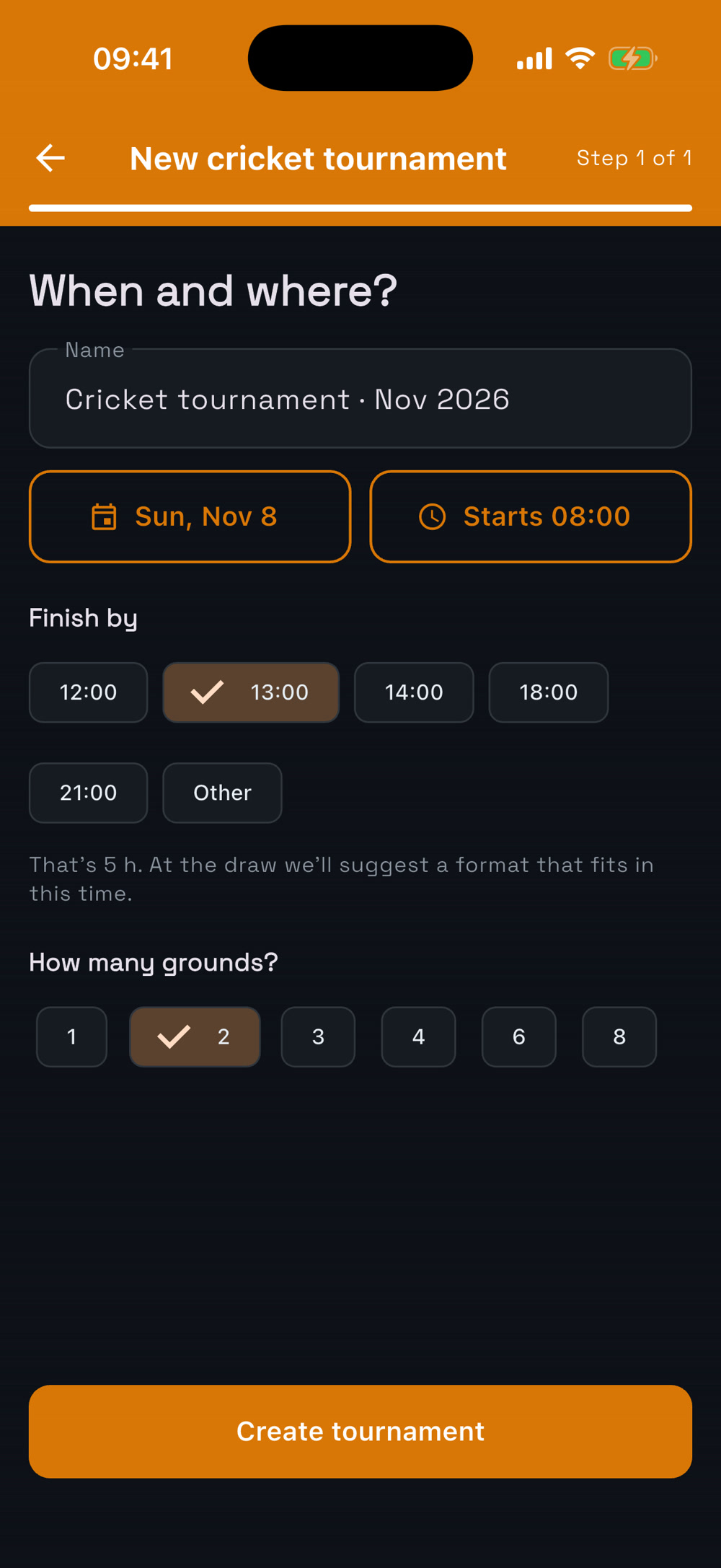
  2. A single-sport club goes straight to When and where?: name it (e.g. Summer T20 Cup), set the date, start/finish times and how many grounds.
  3. Tap Create tournament, then Share on WhatsApp or as a QR poster so teams can register.
When and where?
When and where?
It’s created
It’s created
Module 5

Live scoring

Score on your phone, ball by ball or point by point — everyone else follows live. Live scoring works across sports: cricket and box cricket, badminton, tennis, padel, squash, table tennis, pickleball, football, netball and kabaddi.
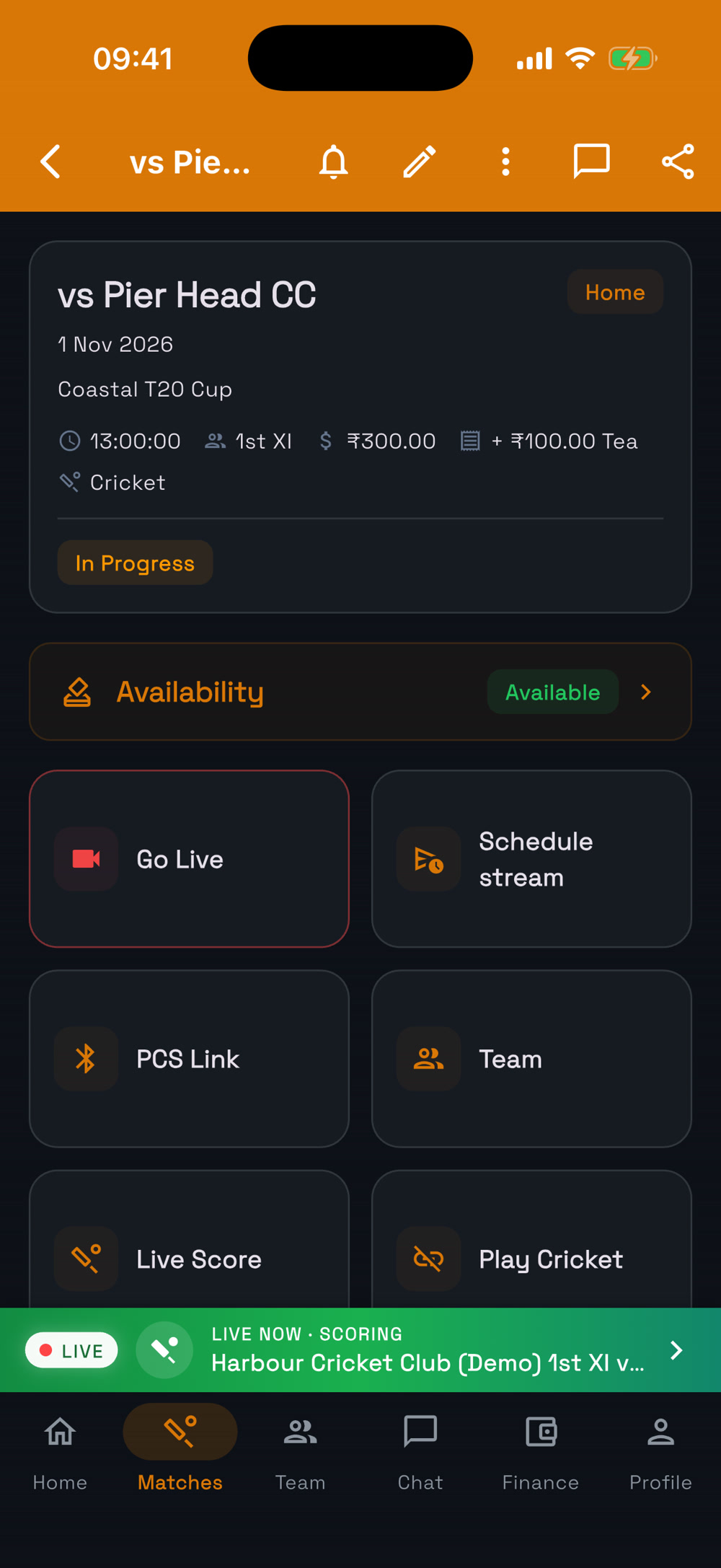
15Score cricket ball by ball

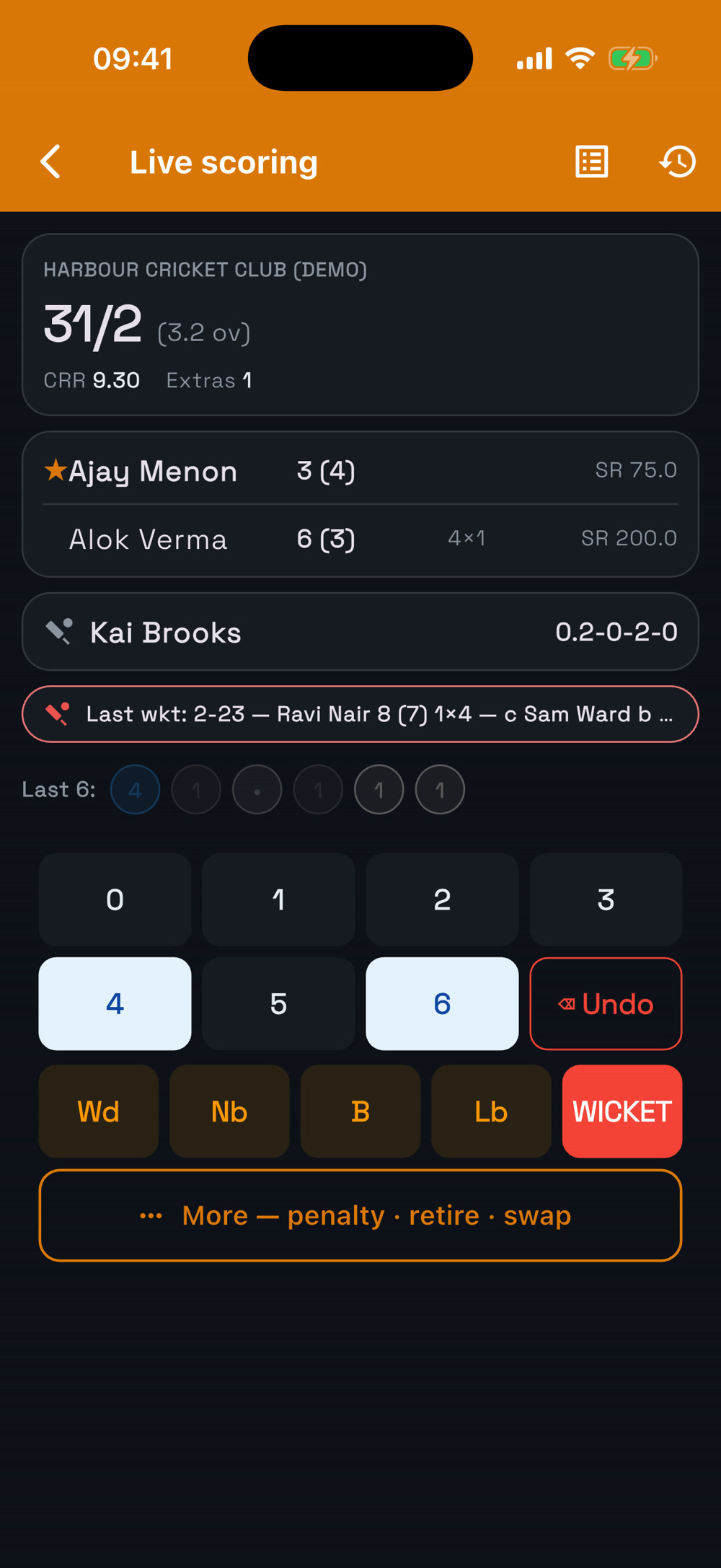
  1. Open the match and tap Continue scoring (or start scoring). Use Scorers → Assign to let someone else score.
  2. Tap runs, extras or Wicket for each ball; grovr does the scorecard.
  3. Only one phone scores at a time — hand over from the match screen if you need to.
Match
Match
Live scoring
Live scoring
Module 6

Live streaming

Stream any match to YouTube from a phone, with the live score on screen.
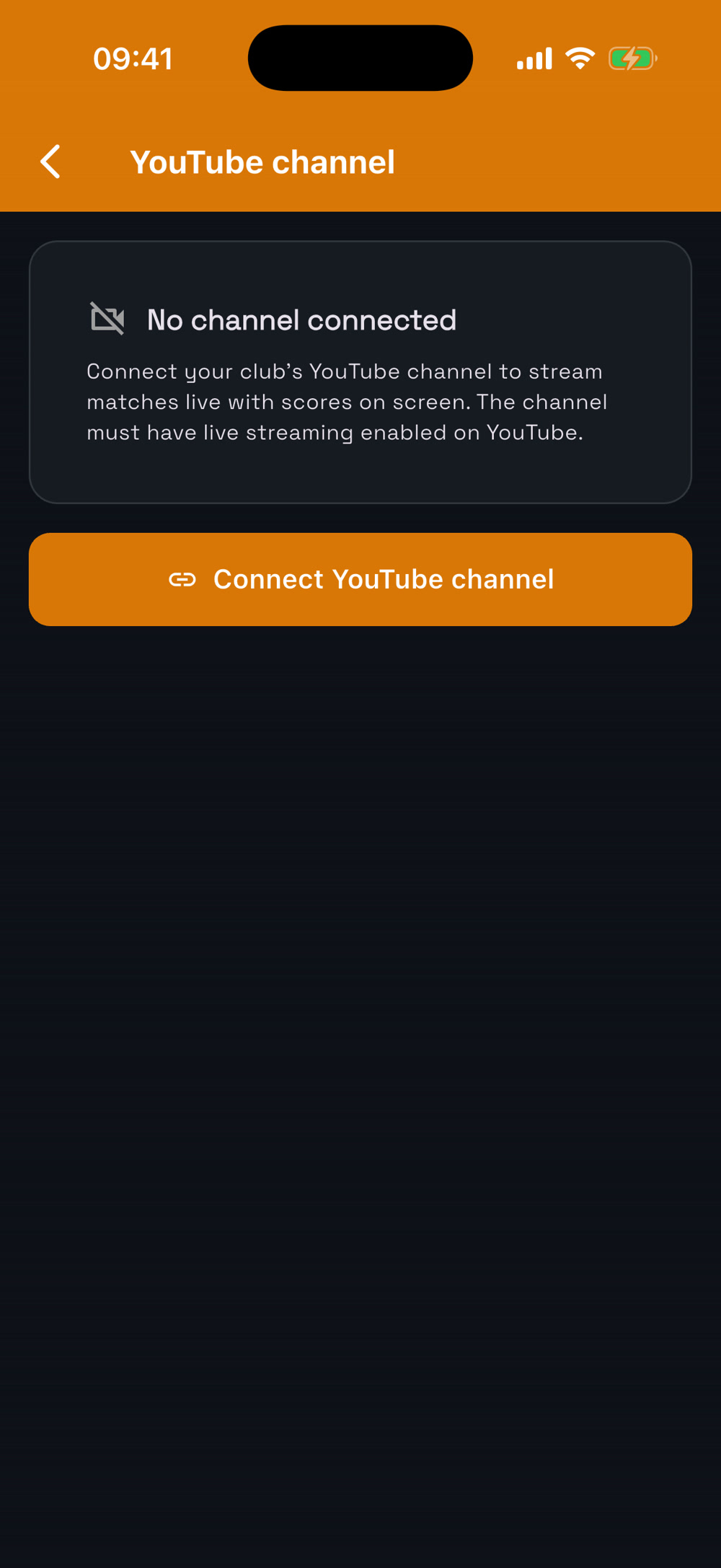
16Connect your YouTube channel

  1. Open Club settings → YouTube channel and tap Connect YouTube channel.
  2. Sign in with the Google account that owns your channel and allow access.
  3. Live streaming must be enabled on the channel (YouTube can take up to 24 hours the first time).
Connect YouTube
Connect YouTube

17Go live

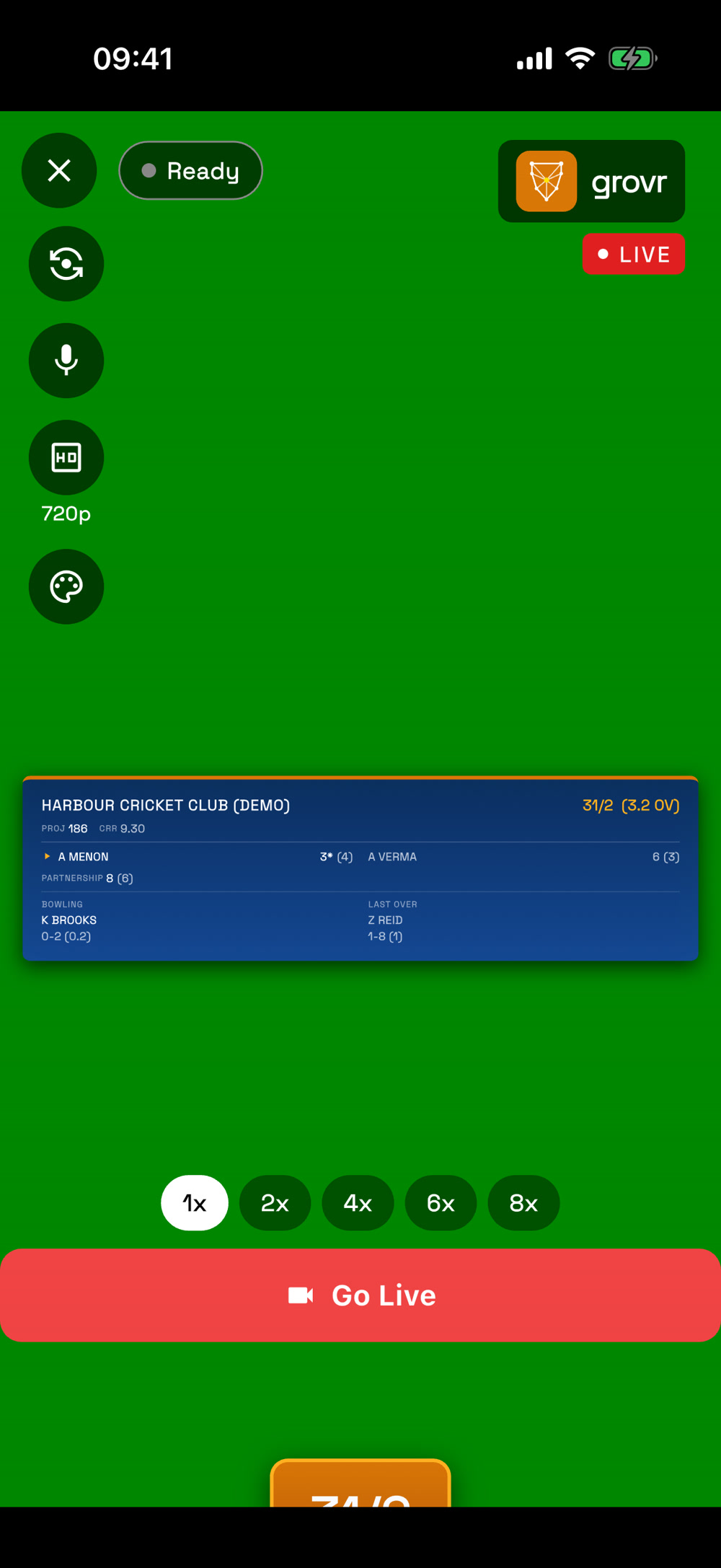
  1. Put a phone on a tripod facing the action and open the match.
  2. Tap Go live, check the camera preview and quality, then tap Go Live.
  3. The scorer keeps scoring on another phone — the score overlay updates on the stream by itself.
Share the match link so people can watch from anywhere.
Go live
Go live

18A score bug for every sport

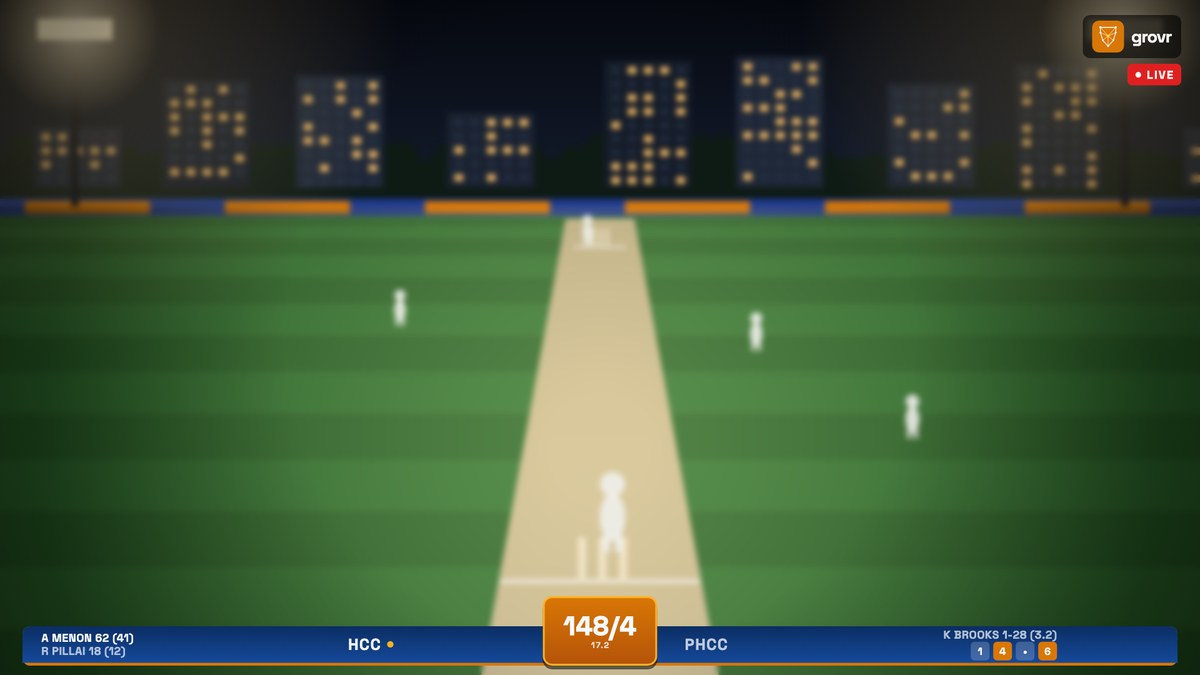
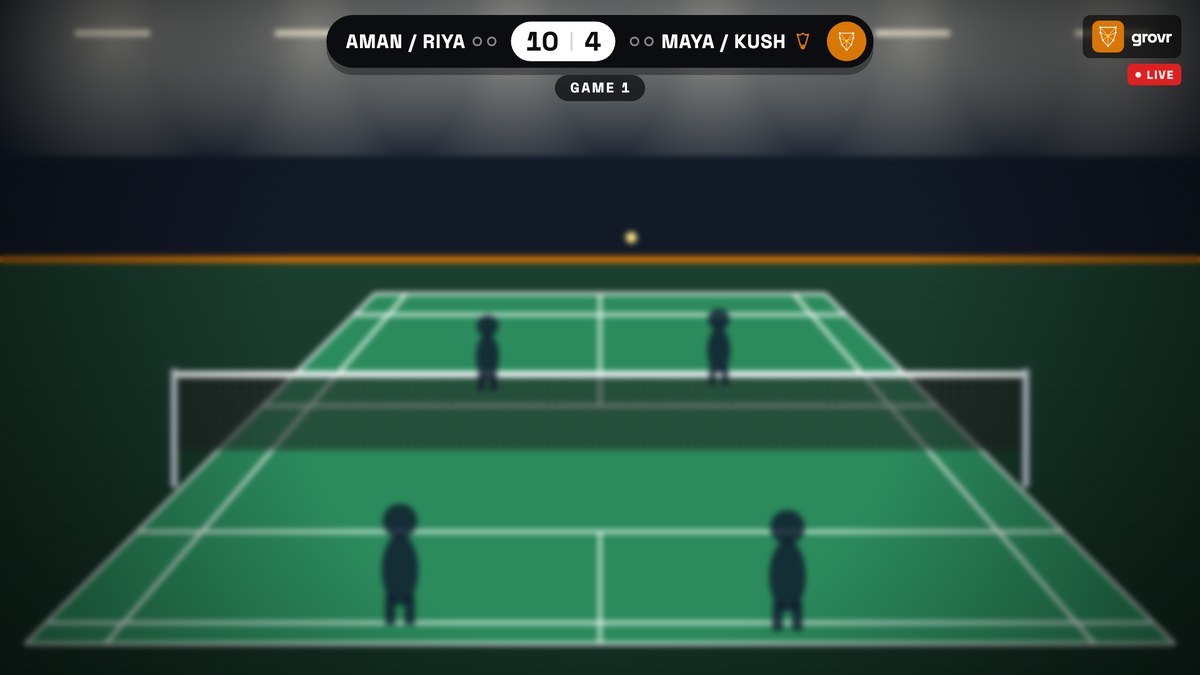
  1. Live streaming with an on-screen score works across sports — the score bug updates by itself as you score.
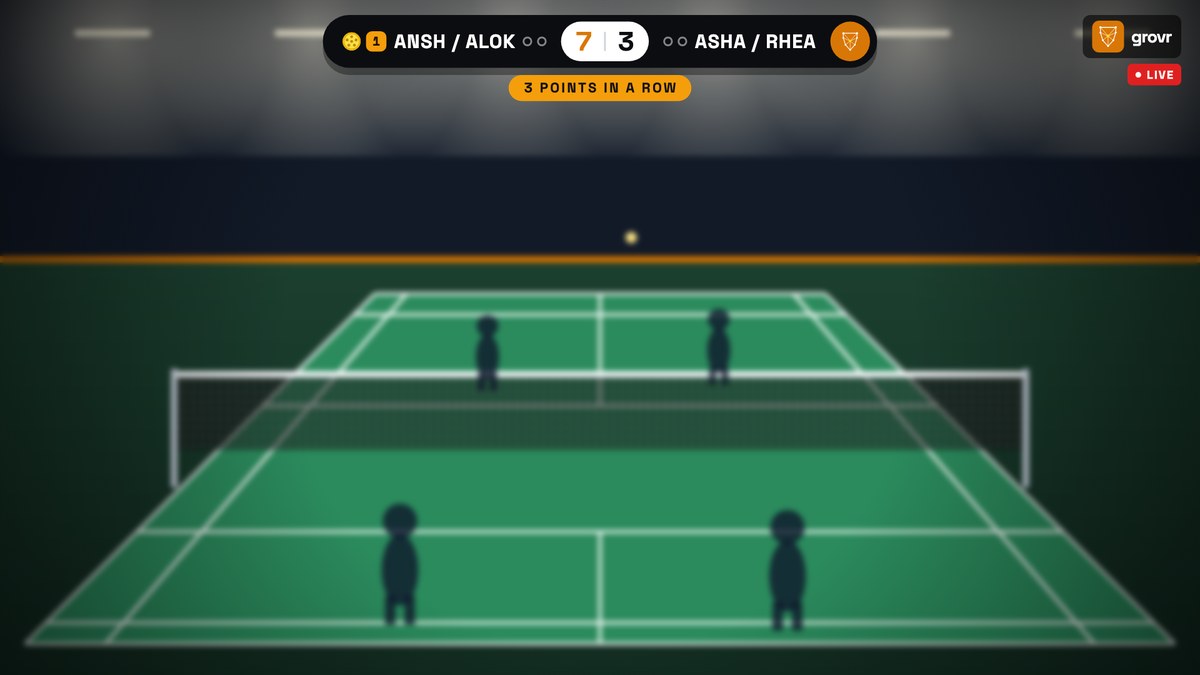
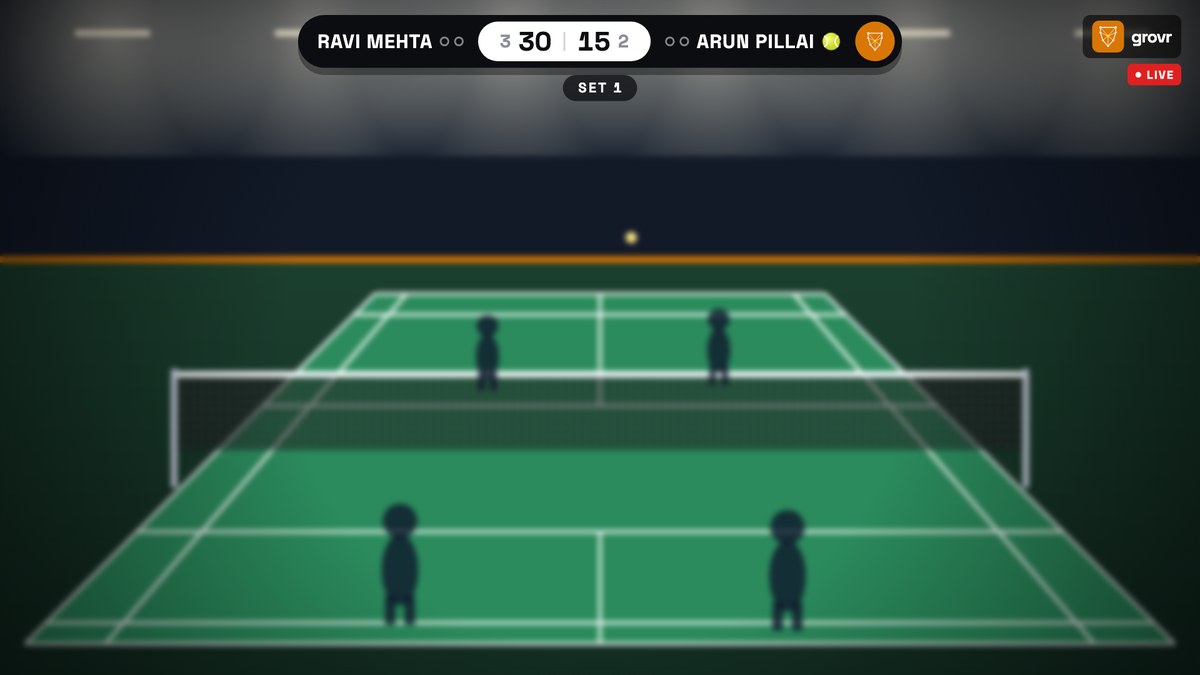
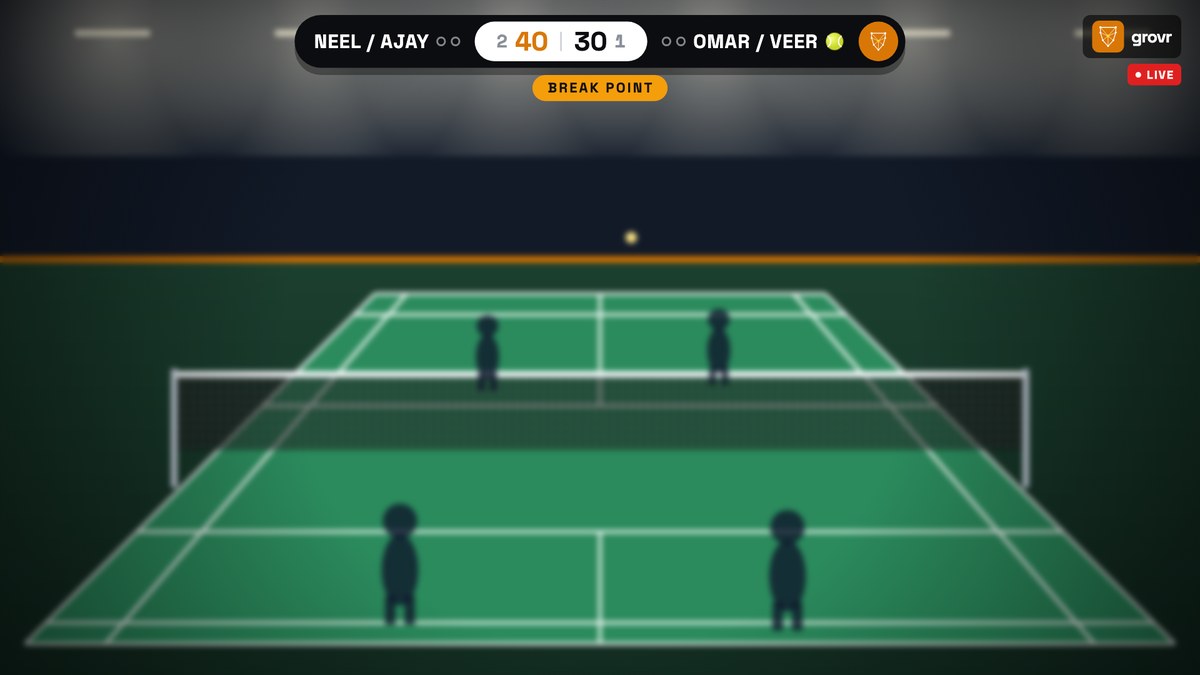
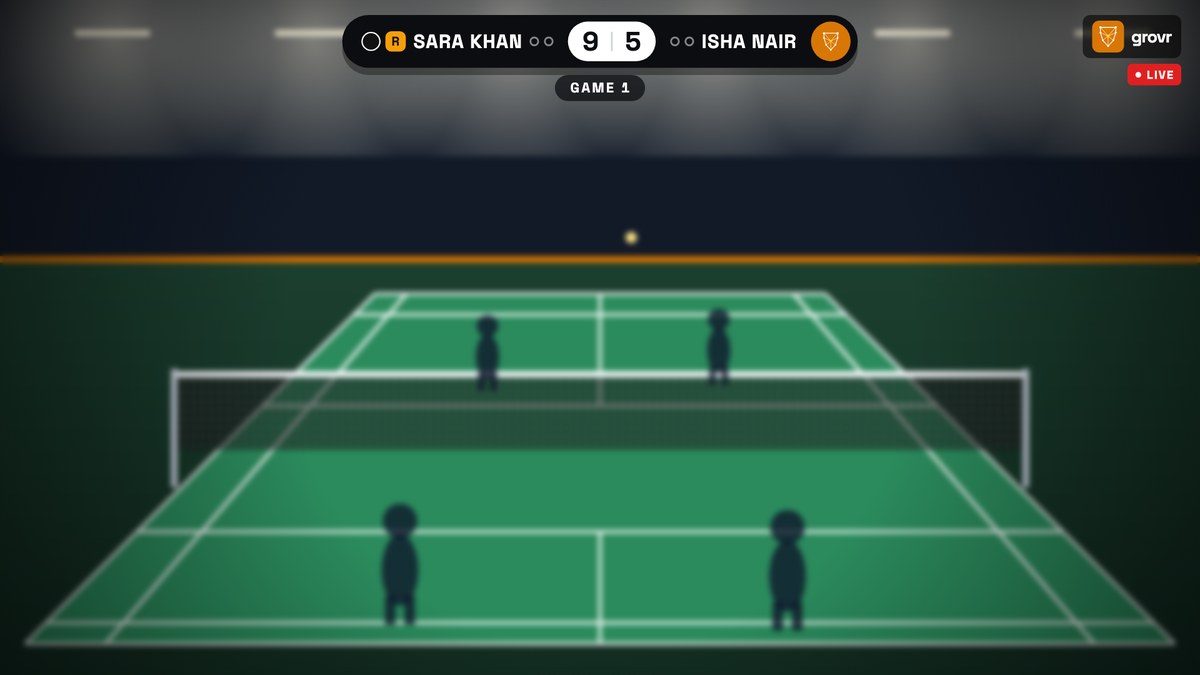
  2. Cricket gets a full scoreboard strip (batters, bowler, this over); racquet sports get a score bug with serve, games and moments like break point or points in a row.
  3. Your club logo and sponsors can appear on stream too.
Module 7

Stats

Every ball and every point you score builds your club’s stats — no spreadsheets, nothing to type in.
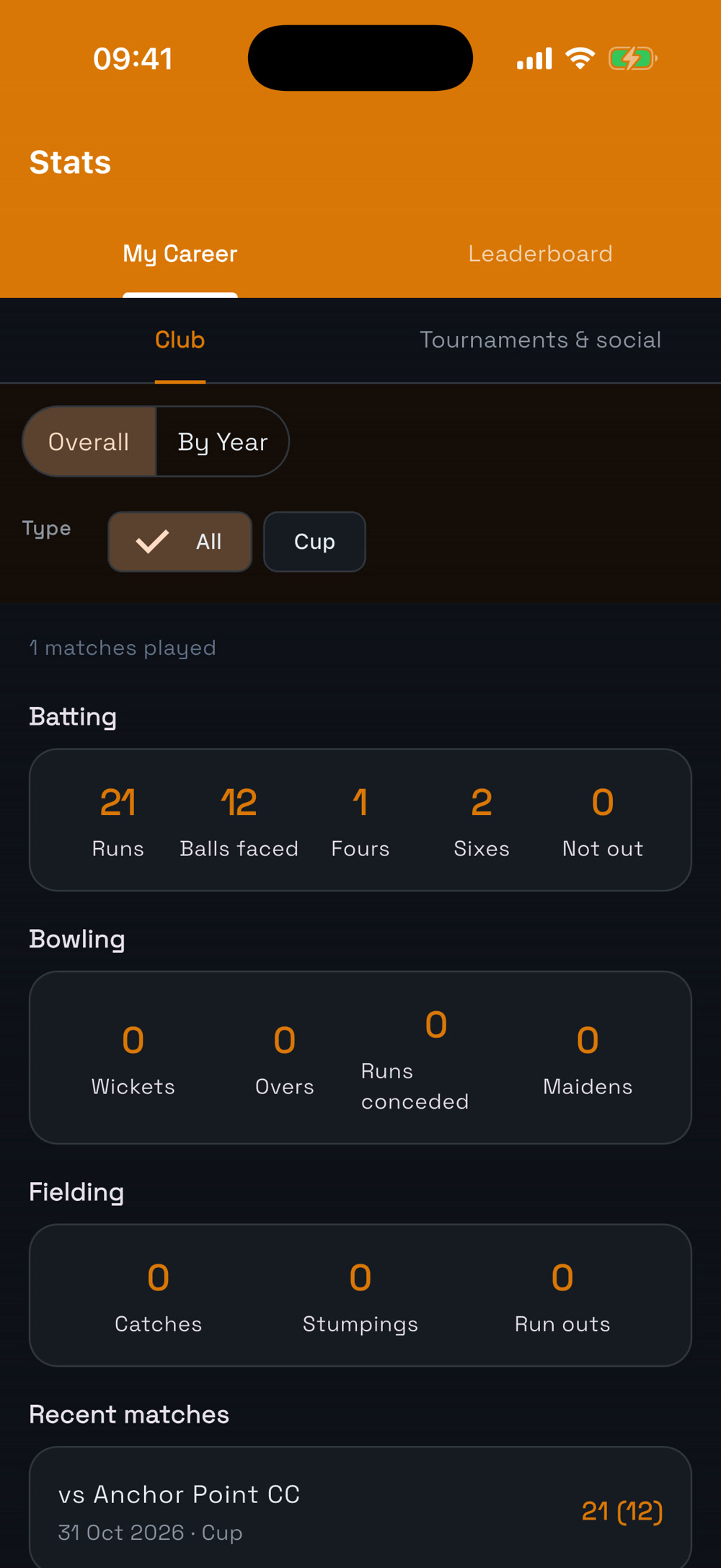
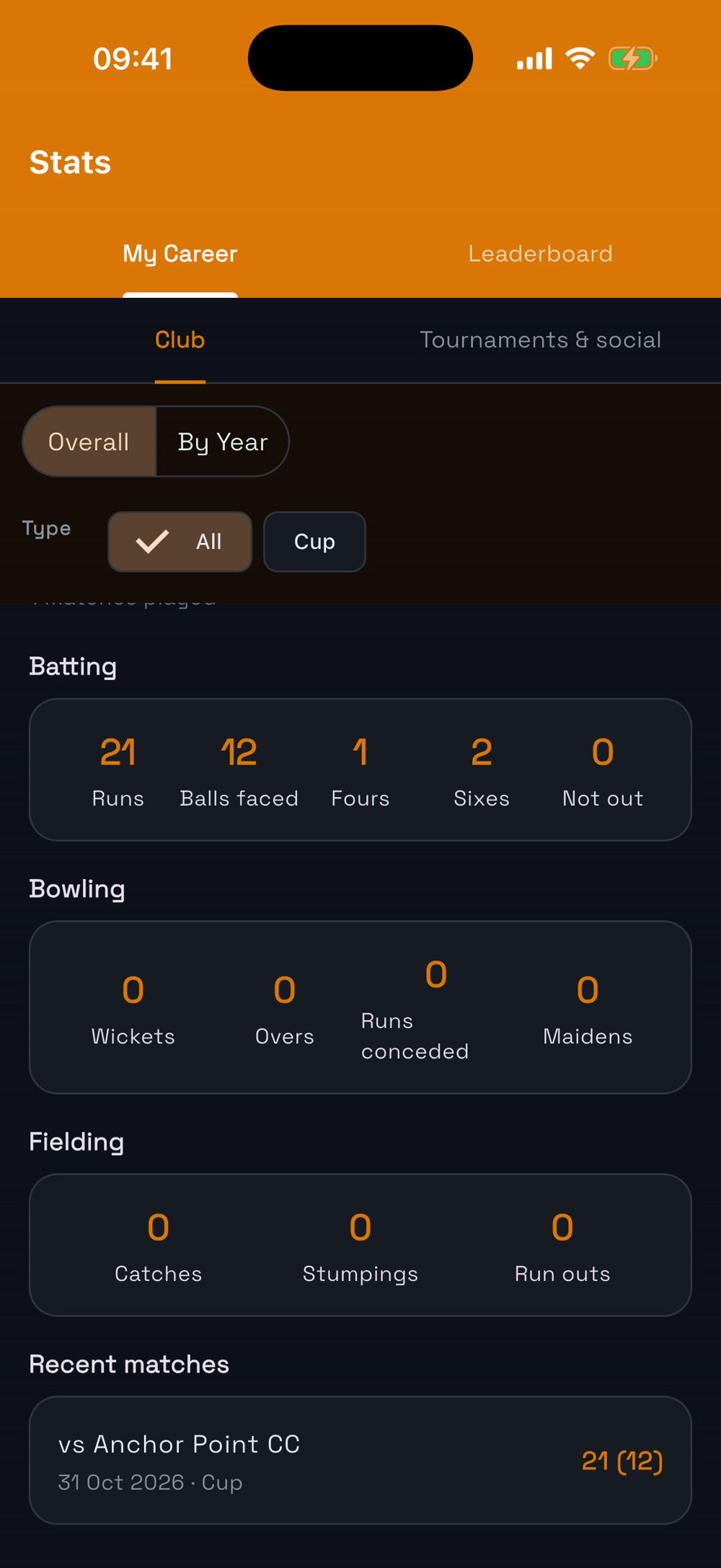
19Your cricket stats

  1. Tap My Stats on the home page. My Career shows your runs, balls faced, 4s and 6s, wickets, overs, economy and catches — built from every match you’ve played.
  2. Leaderboard ranks everyone in the club. Switch between Overall and By Year, or filter by competition.
  3. Stats are added the moment a scored match is finished — nobody types anything in.
My Career
My Career
Batting, bowling, fielding

20Badminton & racquet sports stats

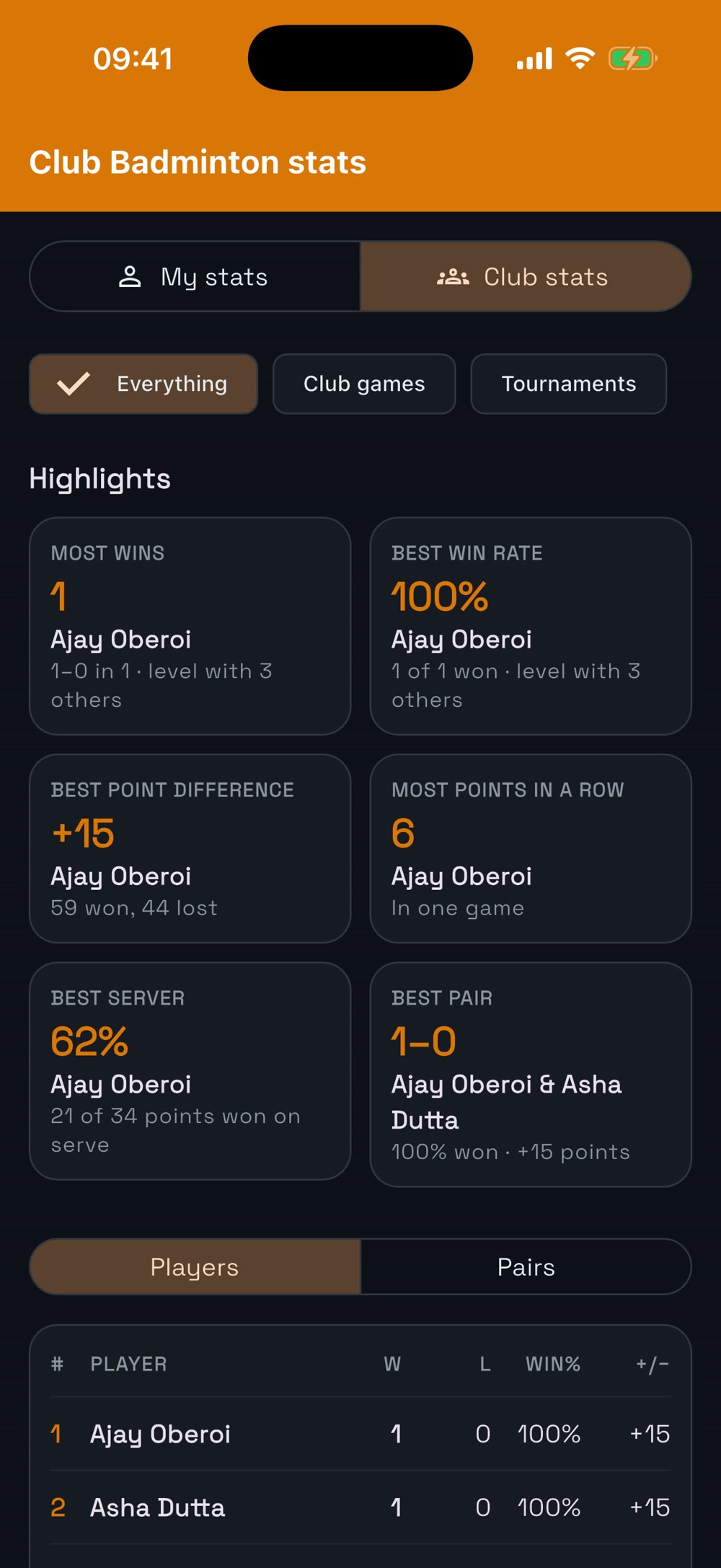
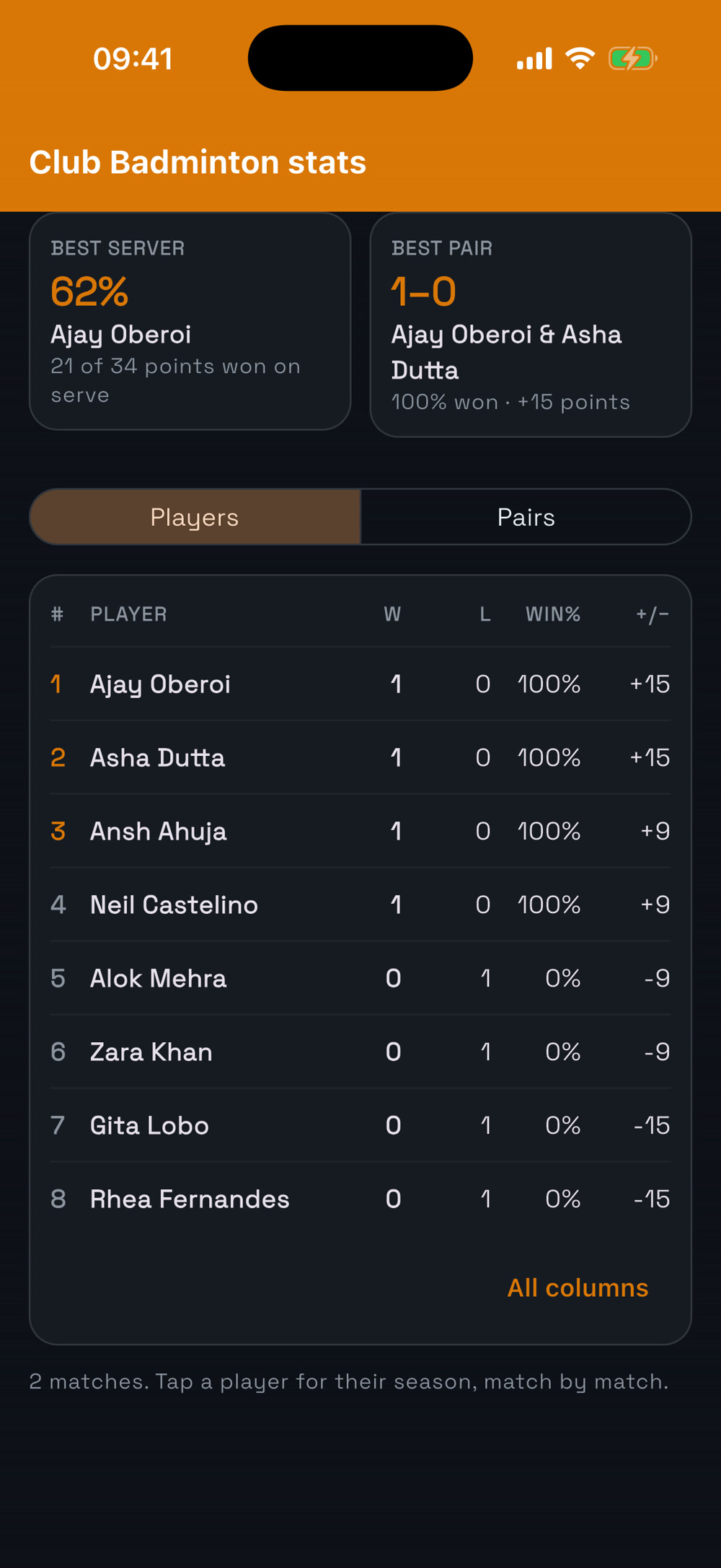
  1. Go to Profile → My Racquet sports stats. Club stats shows the whole club: most wins, best win rate, best server, best pair, most points in a row, and a full player table.
  2. My stats shows your own season. Works for badminton, tennis, padel, squash, table tennis and pickleball.
Club stats
Club stats
Player table
Player table
Module 8

Kit & inventory

Know who has the stumps, the bats, the kit bag or the box of shuttles — and when stock is running low.
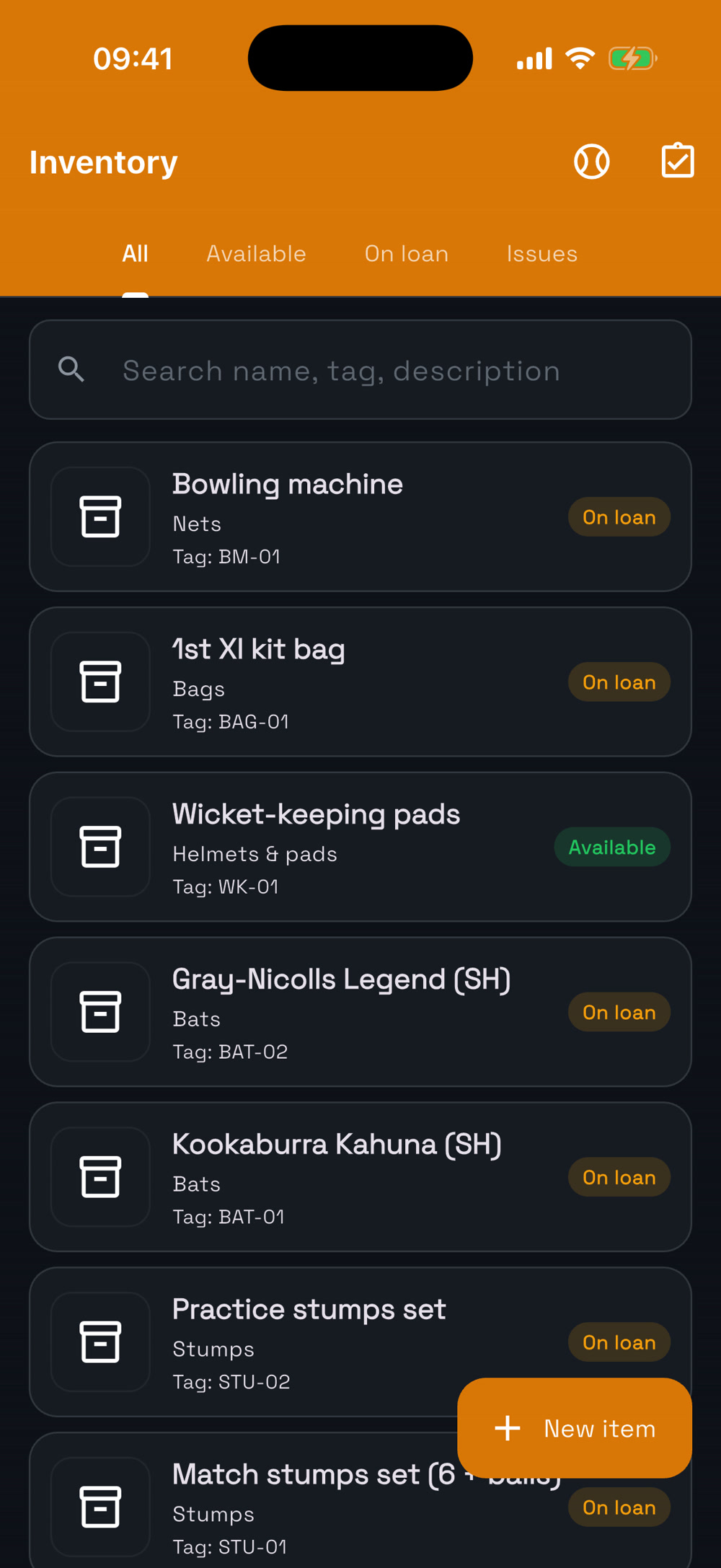
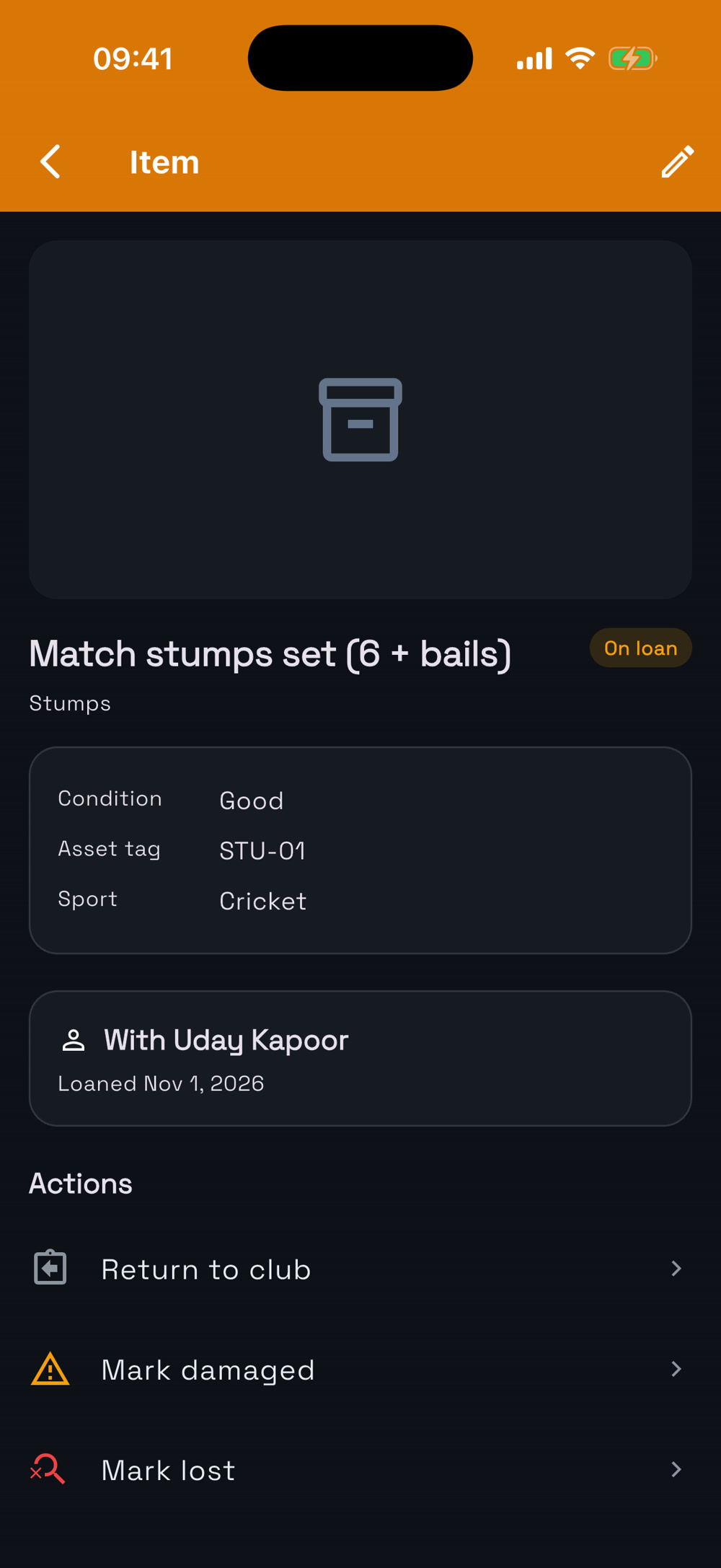
21All your kit — and who has it

  1. Open Club settings → Inventory.
  2. Every item shows its tag, condition and whether it’s available or on loan — and to whom.
  3. Tap an item to lend it, take it back or see its history.
Inventory
Inventory
Who has it
Who has it

22Add an item

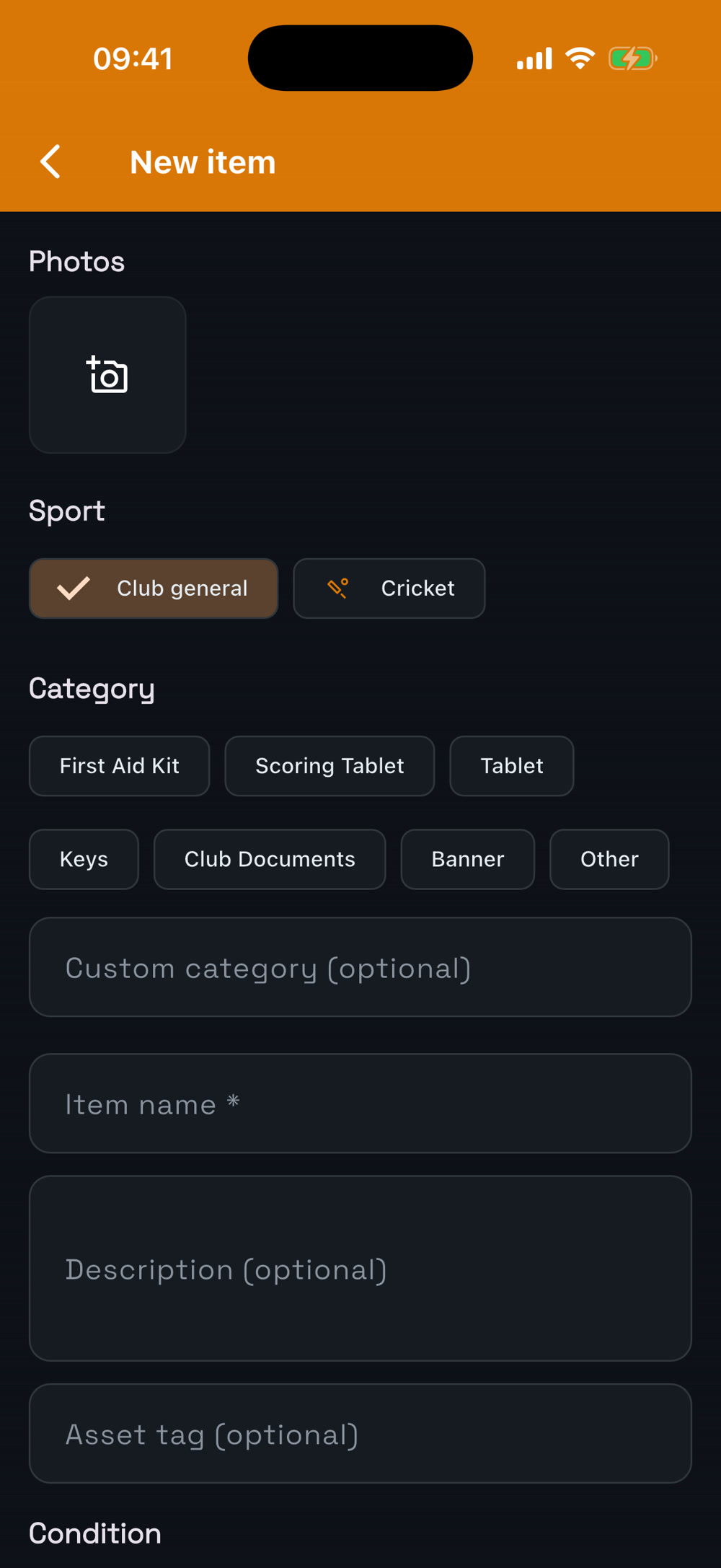
  1. Tap New item, give it a name and category (stumps, bats, nets…), an optional tag like STU-01, condition and a photo.
New item
New item

23Balls, shuttles and other consumables

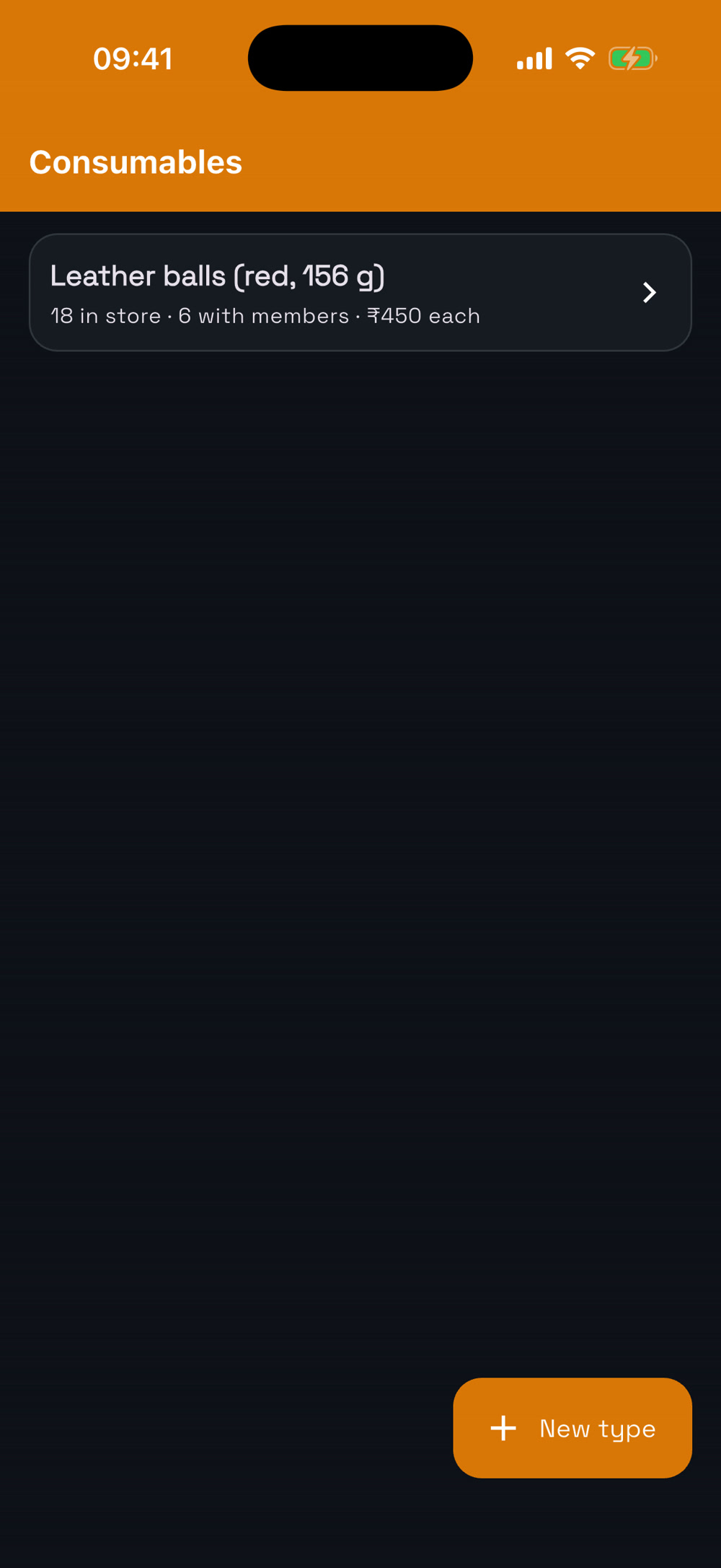
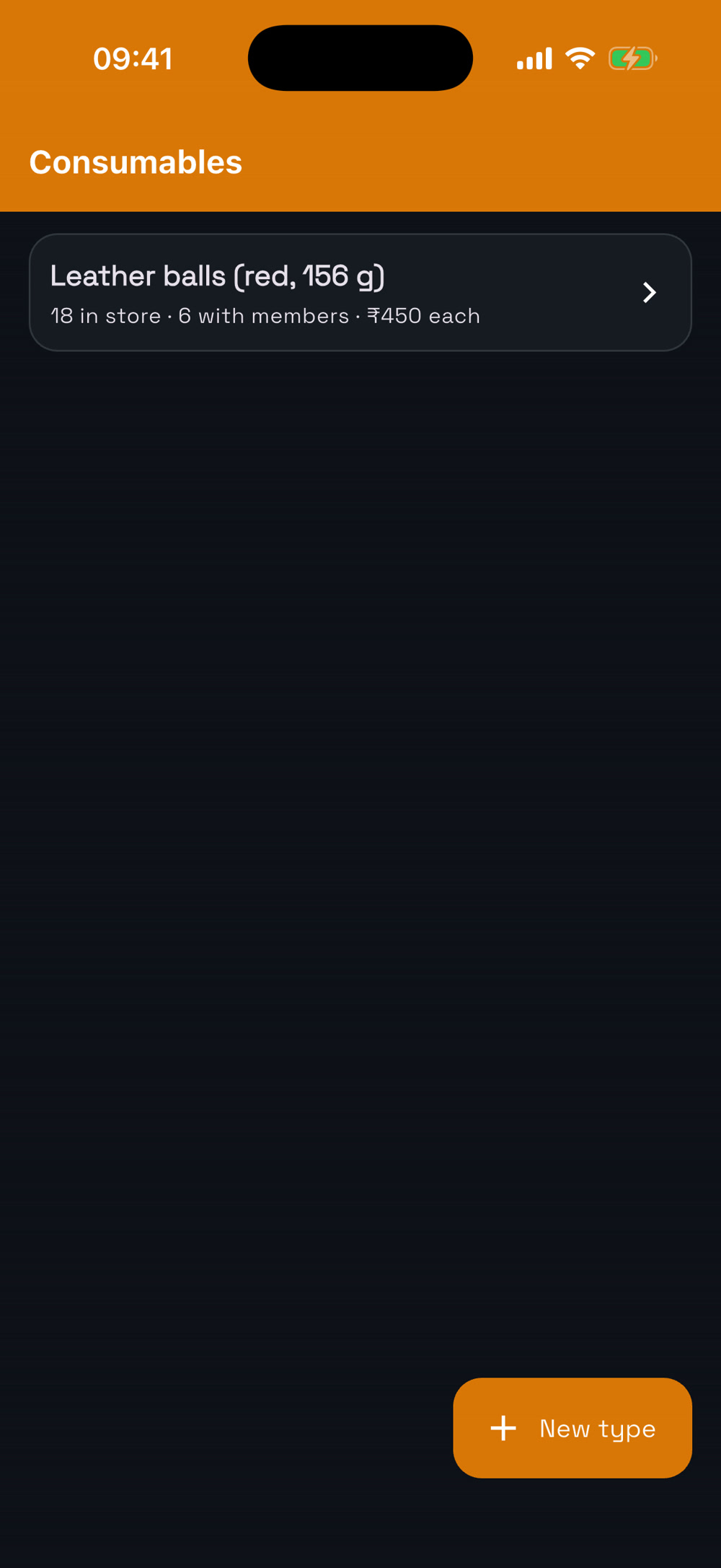
  1. Open Consumables (top of the Inventory screen) to track stock of balls or shuttle tubes.
  2. Add stock when you buy, issue some to whoever is running a session, and get a warning when it runs low. Usage can be charged to the fixture.
Consumables
Consumables
Stock
Stock

24What am I holding?

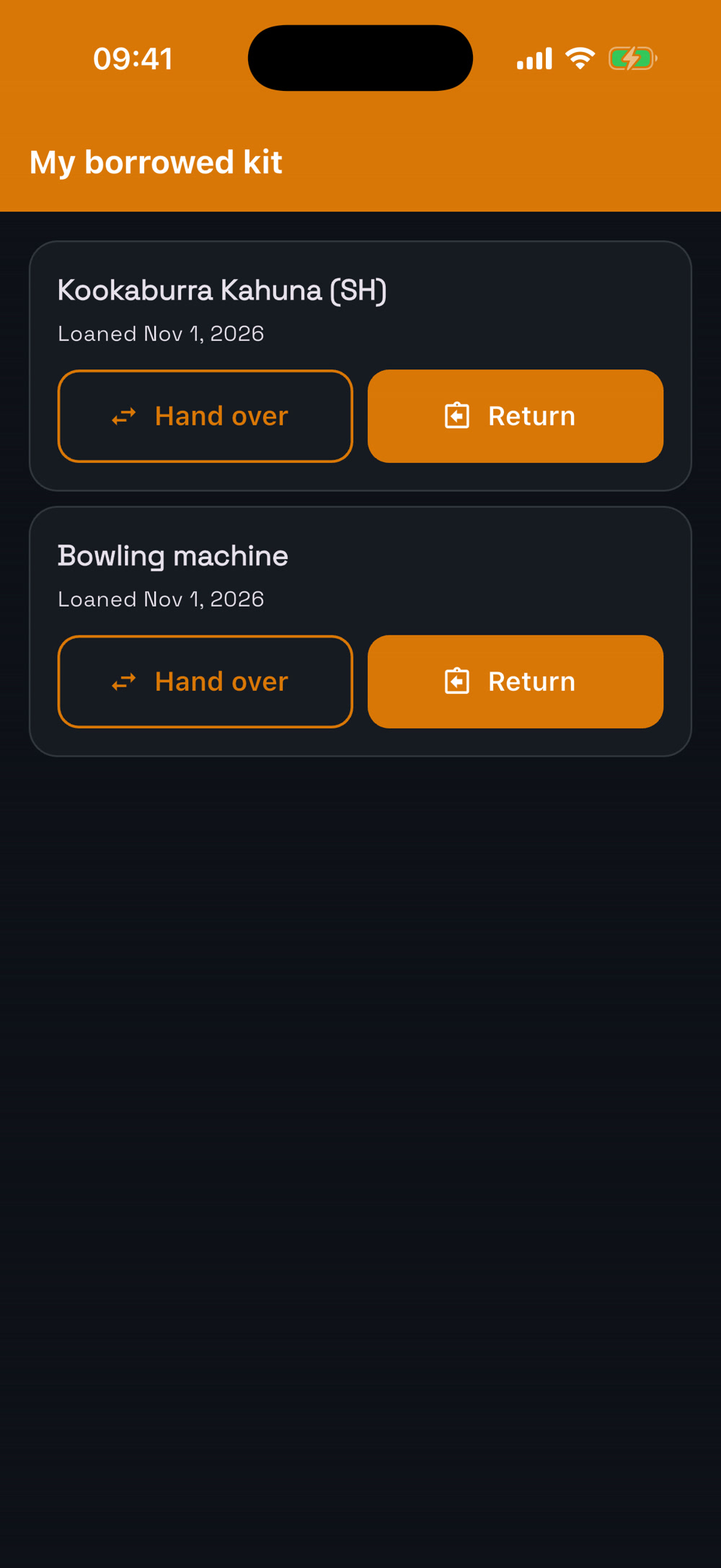
  1. Players see everything on loan to them in Profile → My borrowed kit, so nothing goes missing.
My borrowed kit
My borrowed kit